
You finish the job, deliver the order, or welcome a customer back for another visit. The experience happened, but the Google review never arrives.
The practical response is not a reward for five stars. It is a simple invitation that reaches the customer at a sensible point, explains what you are asking, and makes the next step easy.
Google allows businesses to invite genuine reviews without incentives or attempts to steer the rating or wording. The aim is to hear from customers, not to write their verdict for them. Google’s review policy sets that boundary.
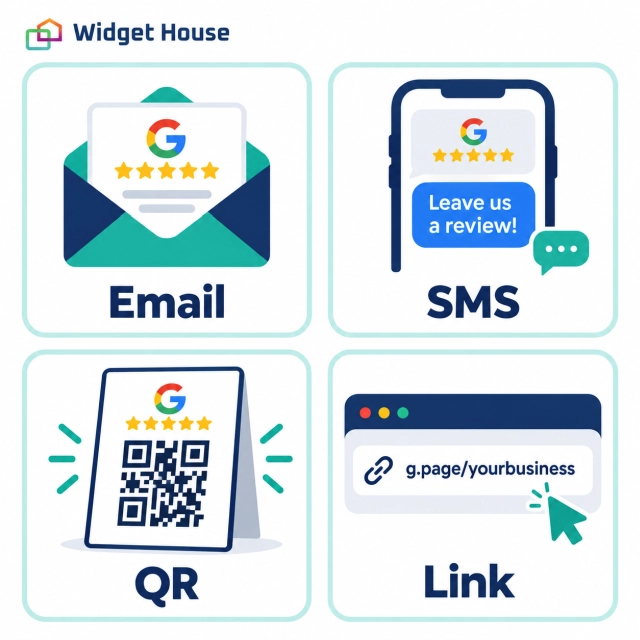
Before You Ask: Get Your Google Review Link and QR Code
Give customers a direct route to the right business, rather than asking them to search for you.
Google’s current desktop instructions are:
- Open your Google Business Profile while signed into the account that manages it.
- Select Read Reviews → Get more reviews.
- Copy the review link.
- To save the QR code, right-click it and select Save image as….
Google currently provides review QR code generation in a computer browser, not on mobile. Its review link and QR code guide covers both options.
Test the destination on your phone before sending a campaign or printing materials. Check the business name and location, including the experience a signed-out customer sees. For a multi-location business, keep a clearly labeled link for each location.
Use a clickable link in an email or message. Use a QR code on something a customer can scan, such as a printed card. A QR-only message is awkward when the customer is already reading it on the phone they would need to scan with.
10 Ways to Encourage Customers to Leave Google Reviews
Start with the channels customers already use with you. These are practical options, not a performance ranking or a promise of a particular review count.
1. Ask after the customer has something to review
Choose a clear milestone: a finished appointment, a completed repair, a delivered order, or an agreed project handover. For a product that takes time to use, allow that experience to happen before asking.
Use the same milestone for comparable customers. An appointment finishing is a consistent trigger; an employee deciding that someone “seems happy enough” is not. Build the invitation around the completed experience rather than a compliment or satisfaction score.
2. Explain the request in one sentence
Say that you are asking for an honest Google review about their experience. Give a straightforward reason, such as helping other customers understand your service or helping your team learn.
“Would you share an honest Google review about your visit? Your feedback helps other customers know what to expect.”
Avoid guilt, exaggerated urgency, or claims that an employee’s job depends on the review. There is no need to promise that it takes “just ten seconds,” either: customers may need to sign in and decide what to write.
3. Make the in-person invitation optional
A short mention as you wrap up a visit can introduce the request: explain where the link is, then let the customer decide whether and when to use it.
Make a take-home card available rather than turning the checkout counter into a review station. Do not stand beside someone while they choose a rating, ask to inspect their phone, or hold up their departure. This is an invitation, not another task they must finish before leaving.
4. Send a focused follow-up email
Keep the message to a thank-you, a clear request, and one review link. Identify your business and reference the completed interaction without including unnecessary personal details.
Give the button a literal label such as Leave a Google review. Do not bury it under a newsletter, an upsell, and several unrelated calls to action. On a small screen, the customer should not have to hunt for what the email is asking them to do.
Choose a sender name customers will recognize. A review request is a continuation of the relationship, not a cold sales pitch.
5. Use SMS or WhatsApp when it is already an appropriate channel
A brief message can fit a business that already communicates with customers that way. Use it only within the customer’s communication permissions and preferences; do not treat possession of a phone number as permission for a new messaging campaign.
Keep the request contextual, include the business name, and send one direct link. Google’s sharing guide specifically includes WhatsApp among its review-request options.
Choose one main follow-up channel. Sending the same request by email, SMS, and WhatsApp on the same day is not a useful substitute for a clear message.
6. Put a QR card where it can be used without pressure
Try an optional take-home card or a small sign near the exit. A plain explanation works: Share your experience on Google.
Check the printed version at its actual size, under the lighting where it will be used. Leave clear space around the code, make the business name readable, and keep it away from folds or glossy areas that interfere with scanning.
Do not add a five-star illustration that tells the customer which rating to choose. The code should shorten the route to an independent opinion, not suggest the answer.
7. Add the link to relevant customer materials
A receipt, completed-service email, or project handover document can carry a review invitation without creating another message. Google also suggests receipts, thank-you emails, and the end of a chat interaction as places to share the link. See Google’s examples.
Match the material to the experience. An order confirmation sent before delivery is usually better used for order information; a later delivery or service follow-up is a more sensible place to request feedback.
An email-signature link can provide a permanent route back, but avoid asking every prospect who has not yet used your business to review it.
8. Build a consistent invitation process
Write down which completed interactions qualify for a request, which channel you will use, and how duplicate messages will be prevented. Apply those rules regardless of the feedback you expect.
For example, a repair business might use the same post-completion email for customers who are eligible to receive it. A complaint can enter a support process in parallel; it should not quietly remove that customer from the review invitation process.
Consistency also helps a small team avoid forgetting some customers and repeatedly contacting others.
9. Give staff a script and clear boundaries
Train the team to explain the invitation, locate the right link, and accept “no” without a second pitch. Agree who owns the follow-up so a receptionist, technician, and manager do not all ask the same person.
Source: Google Maps User Generated Content Policy — Prohibited & restricted content.
10. Show that feedback leads to a response
Set aside time to read what customers say, reply where you can add something useful, and address recurring problems. A thoughtful response is more meaningful than posting the same promotional thank-you under every review.
For critical feedback, acknowledge the concern and offer an appropriate private contact route without publishing personal details. Google recommends professional, relevant replies and constructive responses to criticism. Read Google’s guidance on review replies.
Use what you learn to improve the experience itself. Better instructions, clearer pricing, or more reliable scheduling are worth more than endlessly polishing the review-request subject line.
When Should You Ask for a Google Review?
Use the customer’s experience to decide the timing, not a universal countdown. The following are suggested starting points to test, not Google requirements or proven optimal sending times.
| Business type | Suggested moment | What to avoid |
|---|---|---|
| Salon or appointment business | After the appointment has ended. | Asking while the customer is still receiving the service. |
| Home repair or installation | After the job is completed and the customer has had a chance to check it. | Asking before the work or handover is finished. |
| Retail store or restaurant | After the visit, with an optional receipt or take-home reminder. | Making the review feel like a condition of checkout. |
| Delivered product or longer project | After use, delivery, or a meaningful completed milestone. | Requesting a verdict before the customer can evaluate the experience. |
For repeat customers, avoid making every interaction trigger another request. Keep a contact history so the process remains respectful. A modest, consistent workflow is easier to manage than a sudden push to contact your entire customer list.
Google Review Request Templates You Can Adapt
These are sample invitations, not customer reviews. Adapt the context to your business and add the correct location’s Google review link before sending. Leave customers free to choose the rating and wording.
Email after a completed service
Subject: How was your experience with us?
Thank you for choosing our team. We would appreciate an honest Google review about your experience.
Your feedback helps other customers know what to expect and helps us understand where we can improve.
Button text: Leave a Google review
Link that button to the review destination copied from your Business Profile.
SMS or WhatsApp follow-up
Thank you for visiting us today. Would you share an honest Google review about your experience? We would appreciate your feedback.
Identify your business in the message and append its review link. Use this only through an appropriate, permitted customer messaging channel.
Optional in-person invitation
Thank you for coming in. There is a Google review link on your receipt. You are welcome to share your experience whenever it suits you.
Then let the customer move on. No rating request, phone check, or follow-up at the counter.
Printed QR card
Share your experience on Google
We welcome your honest feedback. Scan to leave a review when it is convenient for you.
Add your business name and the tested QR code for that location.
One optional reminder
A brief follow-up to our review invitation: your honest feedback about your experience is welcome. No action is needed if you have already left a review or prefer not to.
Include the original review link. Only send a reminder when the customer’s permissions and contact preferences allow it. Do not continue until they comply.
What to Avoid: Incentives, Review Gating, and Pressure
Encouragement should remove effort, not buy or control an opinion.
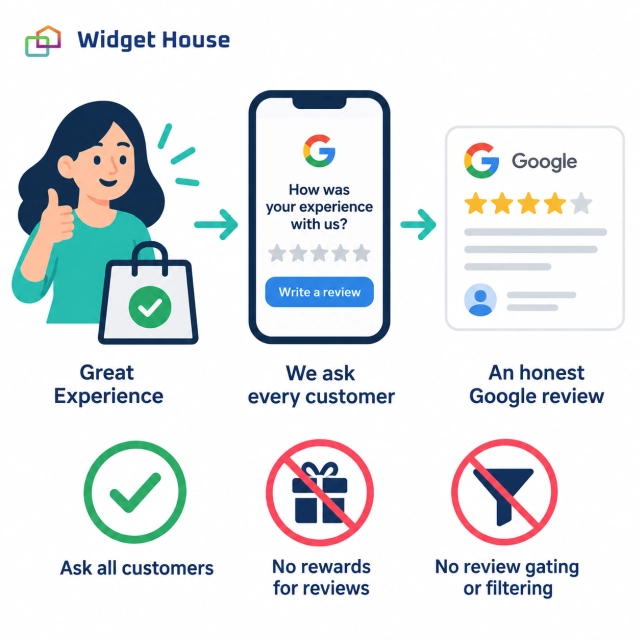
Do not attach a reward to a Google review
Google’s policy rules out incentives for reviews. Its definition covers payments, discounts, free goods or services, and other benefits. A prize drawing or loyalty points tied to posting a review should therefore be treated as an incentive, not a workaround. See Google’s definition of incentivized reviews.
For U.S. businesses, the FTC rule prohibits compensation conditioned on positive or negative sentiment. It does not categorically prohibit every sentiment-neutral incentive, and disclosure obligations may still apply. That distinction does not override Google’s stricter platform policy. The FTC’s questions and answers explain the difference.
Do not send only satisfied customers to Google
Review gating means filtering people before they can reach the public review option. A typical example sends high survey scores to Google while routing low scores only to a private form.
Google prohibits selectively soliciting positive reviews. Keep support available without making a favorable survey answer the entrance requirement for a Google review. Read the rating-manipulation rules.
Keep the review independent
Do not ask for five stars, supplied wording, keywords, or employee mentions. Do not recruit reviews involving employment or family conflicts, fabricate testimonials, or buy them. These practices conflict with Google’s authenticity and rating-manipulation rules.
Give customers a route to speak, not a script for what they must say. The sample messages in this article are invitations from the business; they are not text to post as a customer’s opinion.
Source: Google Business Profile Help — Business Profile restrictions for policy violations.
A Simple Review Request Workflow for a Small Business
You do not need a complicated campaign to start. Put one person in charge of a short, documented process:
- Define the trigger. Choose the same completed-experience milestone for comparable customers, without screening for satisfaction.
- Check the destination and channel. Use the correct location’s review link, appropriate contact permissions, and one main communication channel.
- Send one invitation. Use a recognizable sender and a short request. Prevent duplicate messages across your team and systems.
- Decide whether a reminder is appropriate. As an editorial starting point, consider at most one gentle reminder after several days, then stop. This is not a Google-prescribed schedule.
- Review the process. Check delivery problems, read new feedback, respond where useful, and record service improvements.
Automation, where available in your customer messaging tools, should support these rules rather than create an endless sequence. Respect opt-outs and keep complaint handling separate from decisions about who gets to review you.
Turn the Reviews You Earn Into Website Trust
Collecting a Google review and displaying it on your website are two different tasks.
For existing customers
Use Google’s review link or QR code to invite feedback about a real experience.
For prospective customers
Show existing reviews near the service information, booking form, or contact button they are evaluating.
The Widget House Google Reviews Widget displays reviews from your connected Google Business Profile. Choose a layout, adjust its appearance, and add the installation code to your website.
For the page design, consider a Badge near a main call to action, a Carousel or Slider in a compact review section, or a Grid where visitors can explore more feedback.
Keep the purposes clear: an existing customer can follow a separate, clearly labeled link to leave a review on Google, while a prospective customer reads published feedback on your site. Do not present a display widget as an email or SMS review-request system.
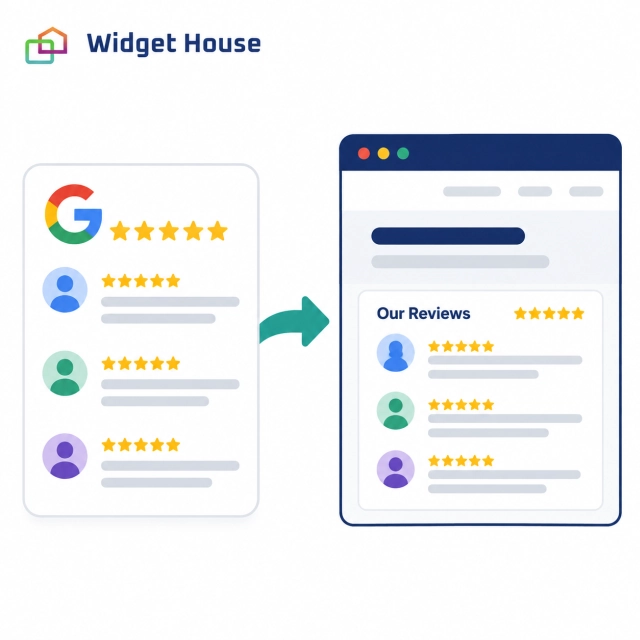
Use the Widget House builder to choose how existing Google reviews will appear on your website. Preview a layout before adding it to a page.
Measure the Process, Not Just the Star Rating
Review your results over a consistent period. Use the numbers to find broken links, missed communications, and recurring service problems—not to set individual staff quotas.
| Measure | What it tells you |
|---|---|
| Delivered requests | Whether your chosen communication process is reaching customers. |
| Unique review-link clicks | Whether recipients are opening the route to Google; not whether they posted a review. |
| New published reviews | The overall change in public feedback during the period, including reviews from other sources of traffic. |
| Opt-outs and complaints | Whether your requests feel unwanted or too frequent. |
| Recurring feedback themes | Where the customer experience needs attention. |
For an email test, calculate unique click rate = unique recipients who clicked ÷ delivered requests × 100. Keep that separate from the number of published reviews.
Someone can click without posting, and someone else can find your profile independently. Do not label every new review a conversion from your campaign. Test one change at a time, such as the subject line or the placement of the review link, while keeping the request neutral.
Final Takeaway: Make Honest Feedback Easier
The most useful review process is one your team can maintain without pressuring customers: ask after a genuine experience, provide a direct route to Google, and make participation optional.
Start with one well-written message and the correct review link. Add a QR card or another touchpoint when it fits the way your customers interact with the business. Then put time into reading the feedback and improving the experience behind it.
Frequently Asked Questions
Are Google Maps reviews and Google Business Profile reviews different?
For your business listing, these terms refer to reviews associated with its Google Business Profile. Google explains that those reviews appear alongside the profile in Maps and Search. Use the location’s review link rather than creating separate campaigns for each label. Google’s review guidance.
Does a customer need a Gmail address to leave a Google review?
No. The customer needs to be signed into a Google Account, but the account can use a non-Gmail email address. Avoid telling customers that they must create a new Gmail inbox. Google confirms the account requirement.
Why has a customer’s Google review not appeared?
Google checks reviews against its policies, and some reviews can take a few days to appear. Policy violations, profile changes, or temporary posting restrictions can also affect visibility. Check Google’s missing or delayed review guidance before assuming the request failed. Do not ask the customer to post repeatedly to force a review through.
Can a customer update an existing review after a later visit?
Yes. Customers can change their reviews, and Google updates the review date when they do. Leave that decision with the reviewer; do not request a particular rating or make a service remedy depend on an edit. Google explains how review updates work.