
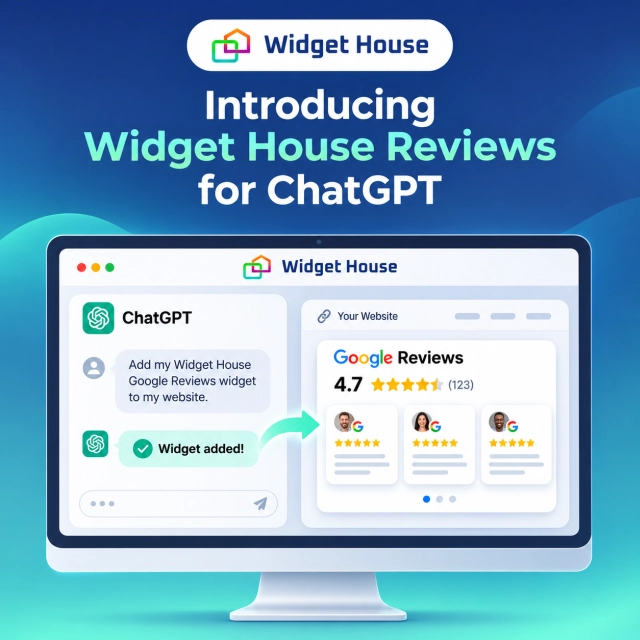
We have published Widget House Reviews, a ChatGPT plugin designed to make it easier to add an already published Widget House Google Reviews widget to a website.
The first public version is 0.1.5, published on November 8, 2026. Its job is deliberately focused: it checks the structure of your public Widget House Install code and prepares the integration for HTML, React, or Next.js.
That means you do not need to give ChatGPT your Widget House password. You only need the full public Install code of a widget you have already created and published in Widget House.
What Widget House Reviews Does
The plugin sits between an already published Widget House widget and the website where you want to display it.
It is designed to help with three practical tasks:
1. Add reviews to a new website
If your Widget House widget is already configured, send its Install code and describe the page and placement you want—for example, next to a lead form or below a service section. The plugin prepares the integration for the technology your site uses.
2. Move an existing widget to React or Next.js
If a website is being rebuilt, the plugin can help adapt the existing public Install code into a React or Next.js integration instead of treating the old embed as a copy-and-paste-only HTML snippet.
3. Check the Install code before integration
The plugin checks whether the code follows the supported public installation structure before you install or reinstall it.
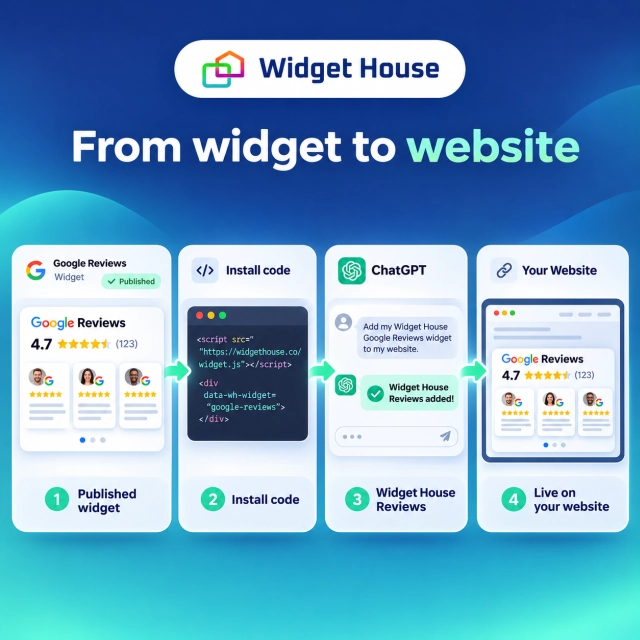
What You Need Before You Start
The plugin does not create the Widget House account or the Google Reviews widget for you.
Before opening ChatGPT, prepare three things:
- A Widget House account.
- A Google Reviews widget for your business that has already been created and published.
- The complete public Install code.
To copy the code in Widget House, open:
My Projects → your widget → Install → Embed Code → Copy code
See the guide to getting your Widget House Install code for more detail.
Copy the entire fragment, including both the loader and the widget block. A widget ID by itself is not enough, and a Google Maps link is not enough.
How to Use Widget House Reviews in ChatGPT
Once the plugin is installed, the workflow takes only a few steps.
1. Install Widget House Reviews
Open the plugin card in ChatGPT, sign in if needed, and install Widget House Reviews. Make sure you select the plugin with that exact name.
2. Start a new chat and select the plugin
In a new conversation, type @, find Widget House Reviews in the plugin menu, and select it before sending your task.
3. Describe the website and placement
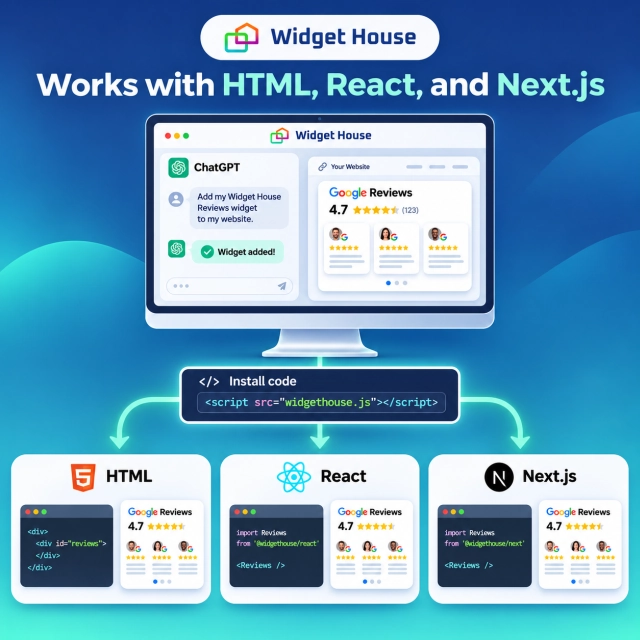
Tell the assistant whether the site uses HTML, React, or Next.js, which page you are working on, and exactly where the reviews should appear.
4. Paste the full Install code
Send the complete public Widget House Install code together with the task. Do not send only the widget ID.
5. Let the assistant prepare the integration
If the assistant has permitted access to the website project, it can apply the prepared integration. Without file access, it can return the ready-to-use code and explain where to place it.
6. Verify the result in the browser
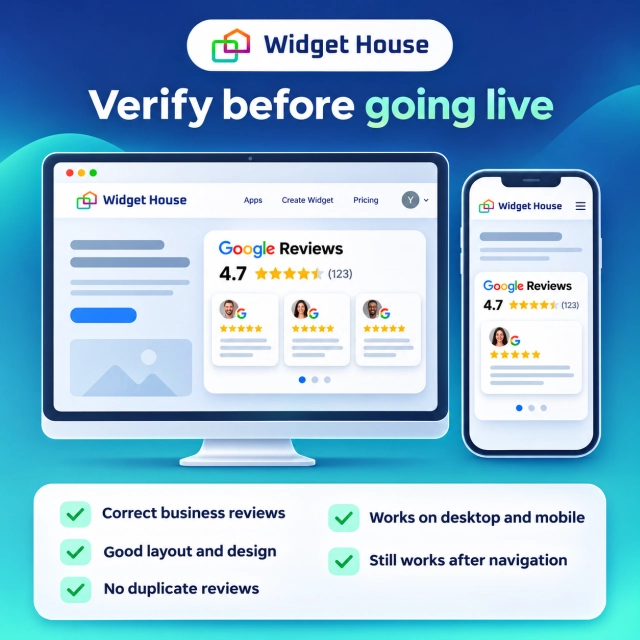
Open the page on desktop and mobile. Confirm that the correct business reviews appear, the block fits the layout, and the widget is not duplicated.
For platform-specific instructions, see the Google Reviews installation guides.
If you are working in Codex and the website technology is not obvious, you can ask the assistant to determine it from the project files before preparing the integration.
A Ready-to-Copy Prompt
Select Widget House Reviews through the @ menu first, then use a prompt like this:
Use Widget House Reviews. I already have a published widget for my business. Below is its full Install code.
Prepare the integration for a website built with [HTML / React / Next.js]. Place it on [page and position]. If you have access to the project, make the necessary changes. If you do not have access, give me the ready-to-use code and explain where to insert it.
My Install code: [paste the complete Widget House code here]
You can make the request more specific by describing the exact placement: “below the pricing table,” “next to the booking form,” “after the hero section,” or “inside the footer of every page.”
What the Plugin Does—and What the Assistant Does
It helps to separate code validation from changes to the website itself.
| Task | Widget House Reviews | Assistant with project access |
|---|---|---|
| Check the supported Install-code structure | Yes | Can use the result |
| Prepare HTML, React, or Next.js integration | Yes | Can apply it |
| Edit website files | No | Only when permitted access is available |
| Publish the website | No | Depends on the available tools and permissions |
| Confirm the final widget visually in a browser | No | Can help when browser/project access is available; otherwise the user verifies manually |
What Widget House Reviews Does Not Do
The current plugin is an integration helper, not a replacement for Widget House itself.
- It does not create a Widget House account.
- It does not create or publish a Google Reviews widget.
- It does not log in to your private Widget House dashboard.
- It does not need your Widget House password.
- It does not retrieve reviews directly from Google.
- It does not independently edit or publish your website.
- A prepared integration does not guarantee that the widget is already visible on the live page.
Final Verification Checklist
After the integration is added, check the page before considering the task complete:
- The widget shows reviews for the intended business.
- The block fits the intended area without breaking the page layout.
- There is only one instance of the widget where you expect one.
- The widget works on both desktop and mobile.
- For React and Next.js websites, navigation between pages does not create duplicate widgets or break the integration.
Why We Built This Plugin
Adding a website widget is usually simple once you know exactly where the code belongs. The friction appears when the same widget needs to work across different stacks, a site is being migrated, or someone wants help without giving another service access to a private account.
Widget House Reviews keeps that boundary straightforward: the widget remains created and published in Widget House, while ChatGPT helps interpret the public installation code and adapt the integration to the website you are working on.
For a small HTML website, that can mean a cleaner installation instruction. For React or Next.js, it can mean translating the same published widget into the structure the application actually expects.
Get Started
If you already have a published Widget House Google Reviews widget, copy its complete Install code and open Widget House Reviews in ChatGPT.
If you have not created the widget yet, build and publish it in Widget House first, then return to ChatGPT for the website integration step.
Create and publish your Google Reviews widget first. Once it is live, use its public Install code with Widget House Reviews in ChatGPT.
Frequently Asked Questions
Can the plugin create a Google Reviews widget for me?
No. The current version expects an already created and published Widget House widget. Create the widget in Widget House first, then copy its full Install code.
Do I need to share my Widget House password?
No. The workflow uses the full public Install code. Your Widget House password is not required.
Does it work with React and Next.js?
Yes. The documented scope of version 0.1.5 includes preparing integrations for HTML, React, and Next.js.
Can ChatGPT edit my website automatically?
The plugin itself does not edit the site. If the assistant has permitted access to your project and the necessary tools, it can apply the prepared integration. Otherwise, it returns the code and tells you where to place it.
Does code validation guarantee the widget will work?
No. The plugin checks the supported code structure. You still need to open the final page in a browser and confirm the correct reviews, layout, and behavior.