
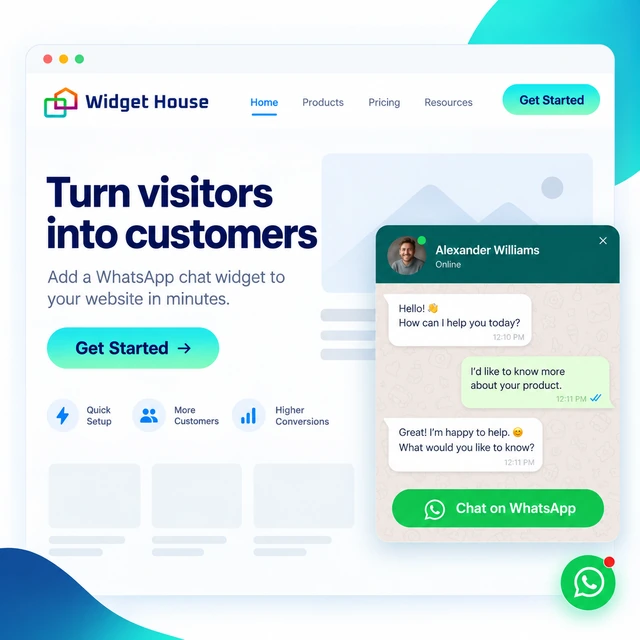
Adding WhatsApp chat to a website is easy. Making it feel like a natural part of the website takes more thought.
A generic floating button can give visitors a way to contact you, but it can also look disconnected from the rest of the page, appear at the wrong moment, or compete with other interface elements. A customizable WhatsApp widget gives you more control over how the chat entry point looks, what it says, and where it fits into the customer journey.
The goal is not to make the widget more noticeable. The goal is to make it more useful.
This guide explains what is worth customizing first, where a WhatsApp widget usually fits best, and how to keep the experience consistent with your brand without overcomplicating the setup.
What Makes a WhatsApp Widget Customizable?
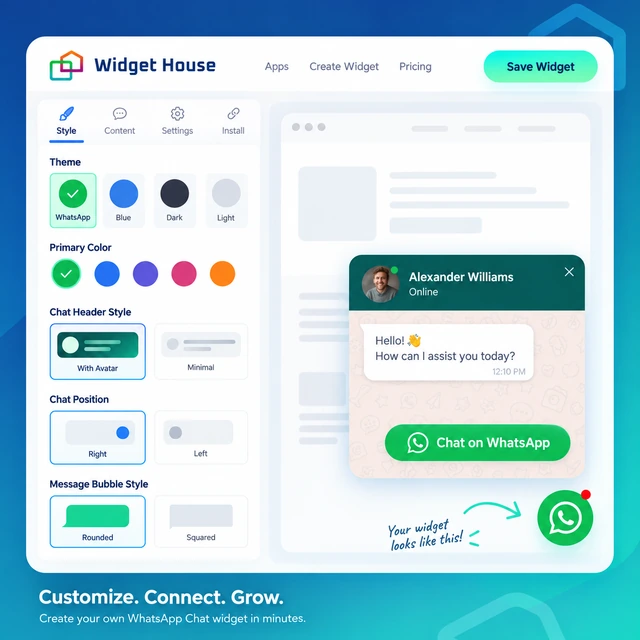
Customization is not only about changing a color. It is about controlling the parts of the widget that affect how visitors notice, understand, and use it.
Depending on the widget, useful customization options can include:
- the appearance of the chat bubble, button, or launcher;
- welcome text and the call to action;
- the start-chat method, button text, or message-field prompt;
- the widget position on desktop and mobile;
- when the widget becomes visible;
- which pages display the widget.
These controls turn WhatsApp from a simple contact link into a designed part of the page experience.
Want to see how the widget can fit your own website? Use the Widget House builder to preview the WhatsApp chat experience before you publish it.
Why Customization Matters for UX and Brand Consistency
A floating chat widget sits directly on top of your interface, so small design and behavior choices can affect the overall impression of the page.
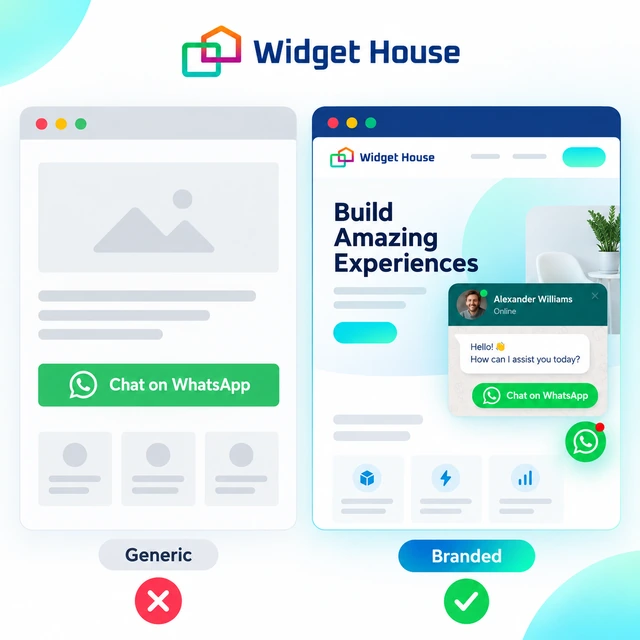
A widget that clashes with the layout, covers an important button, or uses a tone of voice that does not match the rest of the site can feel intrusive. A widget that fits the page can feel like a natural extension of the experience.
Designed as part of the page
The widget matches the visual hierarchy, uses clear copy, and appears where visitors are likely to need a quick way to ask a question.
Added without context
The widget uses generic text, competes with other fixed elements, or appears everywhere regardless of whether chat is useful on that page.
WhatsApp Widget vs. a Plain WhatsApp Link
A plain WhatsApp link can be enough when you only need a simple contact shortcut. A widget becomes more useful when the chat entry point needs to be visible, styled, and placed intentionally.
A direct wa.me link can send visitors into WhatsApp without requiring a complex setup. The trade-off is that the link itself does not give you much control over how the contact option behaves as a persistent website element.
| Feature | Plain WhatsApp link | Customizable widget |
|---|---|---|
| Setup | Very simple | Requires initial configuration |
| Visibility | Depends on where the link is placed | Can remain available as a designed interface element |
| Branding | Limited | Can be adapted to the page design |
| CTA copy | Controlled by the surrounding page content | Can use its own welcome text and CTA |
| Placement strategy | Manual placement | Designed for consistent placement across selected pages |
What Should You Customize First?
Do not start by tweaking every available setting. Start with the choices that make the widget easier to understand and easier to use.
1. Welcome text
Make the first message specific enough to explain why someone should open the chat. For example, "Questions about pricing? Chat with us on WhatsApp" gives more context than a generic greeting.
2. CTA copy
Use wording that is immediately clear. "Chat with us on WhatsApp" is usually easier to understand than vague labels such as "Let's talk" or "Need help?" without context.
3. Visual style
Match the widget to the rest of the interface. Pay attention to size, spacing, contrast, corner radius, and how strongly the widget competes for attention.
4. Position
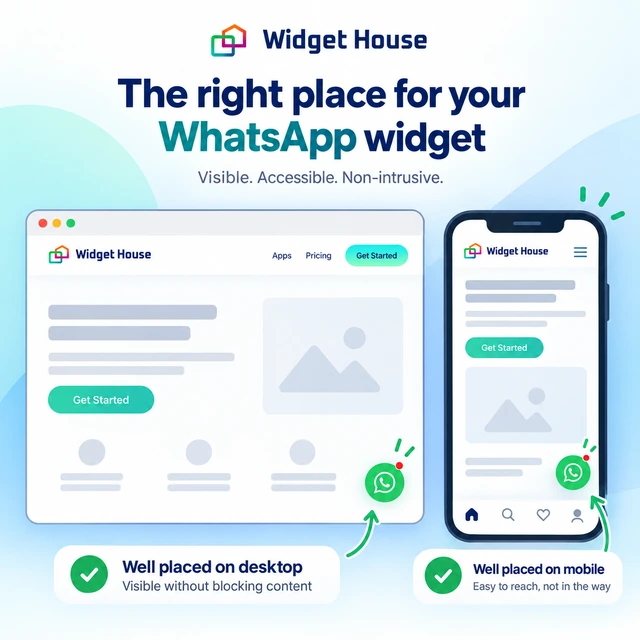
Choose a location that is easy to reach without covering navigation, forms, checkout controls, or other fixed elements.
5. Display behavior
If your widget supports timing or page-level display controls, use them to make chat available when it is relevant rather than forcing the same experience everywhere.
How to Make a WhatsApp Widget Feel On-Brand
Brand consistency comes from a combination of visual choices and communication style.
Match the visual hierarchy
The widget should be visible without becoming the loudest element on the page. If every CTA on the website uses a restrained style, an oversized floating widget with aggressive animation can feel out of place.
Use your brand voice
Welcome text should sound like the rest of your website. A formal B2B service may need concise, professional copy, while a consumer brand may use a warmer and more conversational tone.
Keep the purpose specific
Tell visitors what the chat is useful for. Pricing questions, booking availability, pre-sale product questions, and service details are all clearer reasons to open WhatsApp than a generic "Message us."
Check desktop and mobile separately
A position that works on desktop can interfere with mobile navigation, sticky purchase buttons, or browser controls. Always test the published page on smaller screens before treating the setup as finished.
Best Places to Show a Customizable WhatsApp Widget
The most useful placement is usually where visitors are already close to a decision and may have one question preventing them from taking the next step.
Good candidates often include:
- pricing pages;
- service detail pages;
- product pages;
- booking pages;
- contact pages;
- high-intent landing pages.
That does not mean the widget must be hidden everywhere else. The point is to decide deliberately rather than assuming that sitewide placement is always the best default.
Common WhatsApp Widget Customization Mistakes
Most problems come from making the widget more noticeable without making it more useful.
Do this
- write a clear reason to start the chat;
- match the widget to the page hierarchy;
- leave enough space around other fixed elements;
- test desktop and mobile;
- use different placements where user intent differs.
Avoid this
- using generic default text everywhere;
- making the widget visually louder than the primary CTA;
- covering cookie notices, forms, or checkout controls;
- showing chat immediately on every page without a reason;
- treating customization as decoration instead of UX.
The goal is not to make the widget flashy. The goal is to make starting a conversation feel effortless.
How Widget House Fits This Use Case
Widget House WhatsApp Chat is intended for websites that want a focused path into WhatsApp without turning the page into a full support interface.
The practical value is the ability to build the chat entry point as part of the website experience rather than relying on a bare contact link. You can use the configurator to prepare the widget, adapt the visible presentation and messaging, and then add the finished widget to your website.
If you want to explore the product separately, visit the Widget House WhatsApp Chat page.
Create WhatsApp Chat WidgetWho Benefits Most from a Customizable WhatsApp Widget?
A WhatsApp widget is especially useful when visitors often need a short answer before they are ready to buy, book, or submit a form.
Service businesses
Useful for availability questions, pricing clarification, booking details, and quick pre-sale conversations.
Small business websites
Useful when the business wants a direct contact channel without adding a larger live-chat workflow.
Freelancers and consultants
Useful when prospects often want to ask one or two questions before scheduling a call or submitting an inquiry.
Ecommerce and landing pages
Useful for pre-sale questions when a visitor needs fast clarification about a product, offer, delivery, or next step.
Final Checklist for an On-Brand WhatsApp Chat Experience
Before publishing the widget, check that every customization choice has a clear purpose.
- The welcome text explains why someone should start the chat.
- The CTA is clear at a glance.
- The widget fits the visual hierarchy of the page.
- The position does not cover important interface elements.
- The experience works on mobile as well as desktop.
- The widget appears on pages where WhatsApp is actually useful.
- The rest of the page still works if the widget is ignored.
A customizable WhatsApp widget works best when it feels intentional.
Design it around the visitor's next question, not around the number of settings available in the editor.
Frequently Asked Questions
What is the best customizable WhatsApp widget for a website?
The best option depends on what you need to control. For most websites, useful customization includes clear CTA text, a brand-appropriate visual style, sensible positioning, and enough display control to keep the widget relevant without making setup unnecessarily complex.
Can I customize a WhatsApp widget without coding?
Yes, if the widget provides a visual configurator. In that case, you can prepare the visible chat experience without manually building the interface yourself, then install the finished widget on the site.
Should I show the WhatsApp widget on every page?
Not necessarily. Start with pages where visitors are likely to have a question before taking action, such as pricing, service, product, booking, and contact pages. Broader placement makes sense only when chat is useful across the rest of the site too.
Is a customizable widget better than a plain WhatsApp link?
A widget is usually more suitable when you need persistent visibility, a branded chat entry point, and control over placement. A plain link can still be the simpler choice when you only need a basic WhatsApp contact action inside existing page content.