Want to display customer reviews from Google on your Duda website? This guide explains how to add the Widget House Google Reviews Widget to one selected page or place it in the shared footer across your website.
Before you begin, make sure you've created your widget and copied the installation code from your Widget House dashboard
Step-by-step guide to getting your Widget House widget code
Choose How You Want to Display the Widget
Add the widget to a single page
Log in to your Duda dashboard and open the website where you want to install the Google Reviews Widget.
Click Edit or Edit Site to open the website editor.
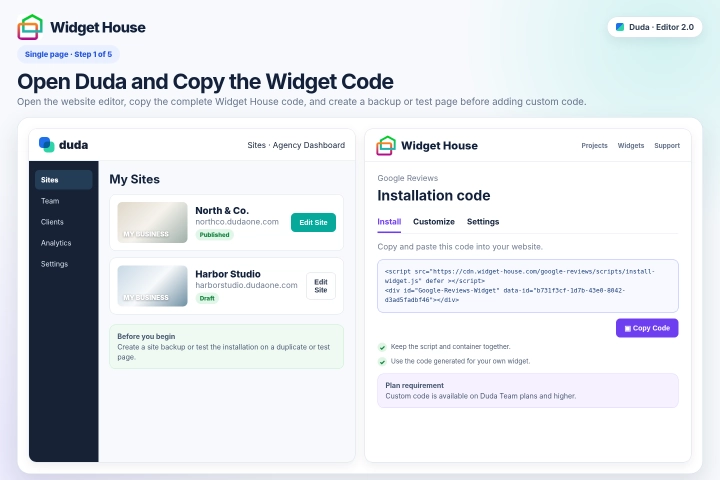
Open your Widget House dashboard and copy the complete installation code generated for your Google Reviews Widget.
The installation code contains two parts: a loading <script> and a visible <div> container with your unique widget ID.
Keep both parts together and in the original order.
Before you begin: Create a site backup or test the installation on a duplicate or test page before adding custom code to your live website.
Plan requirement: Duda documents custom code features as available on Team plans and higher. If the HTML widget or custom code controls are unavailable, check your Duda plan and user permissions.
Step 1: Open Duda and Copy the Widget Code
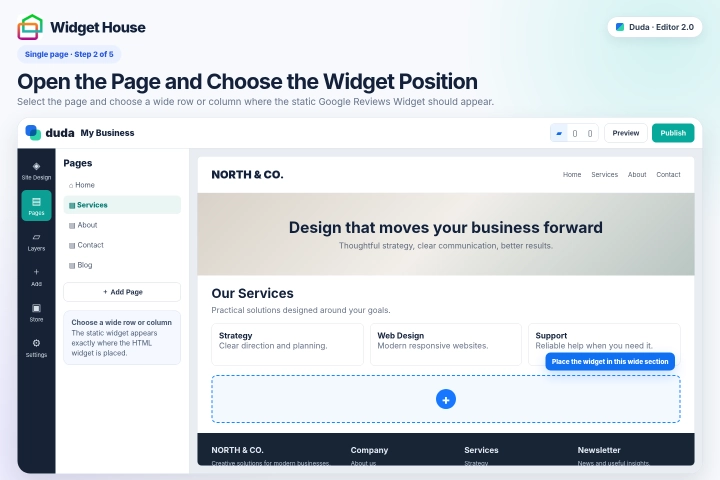
Open the Pages panel and select the page where you want the Google Reviews Widget to appear.
Scroll to the exact section where visitors should see the reviews.
The Google Reviews Widget is static, which means it appears exactly where its HTML widget is placed in the page layout.
For example, you can place the widget below a service description, above a contact form, before a call-to-action, inside a testimonials section, or near the bottom of the page.
Choose a wide row or column so the Google Reviews carousel, slider, or grid has enough horizontal space.
Make sure the selected position is inside a page row and column rather than outside the main page structure.
Step 2: Open the Page and Choose the Widget Position
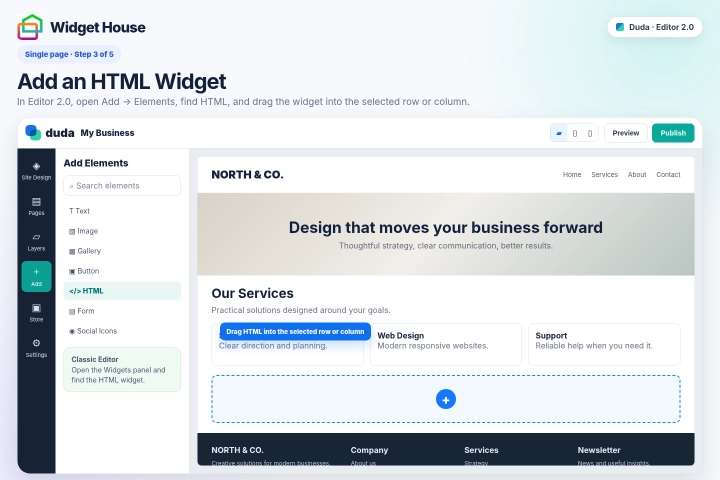
Editor 2.0: In the side panel, click Add → Elements.
Classic Editor: Open the Widgets panel.
Search for HTML.
Drag the HTML widget into the exact row or column where you want the Google Reviews Widget to appear.
Wait until the placement indicator appears inside the required column, then release the widget.
Use Duda's HTML widget rather than a text widget or another element that would display the installation code as visible text.
Step 3: Add an HTML Widget
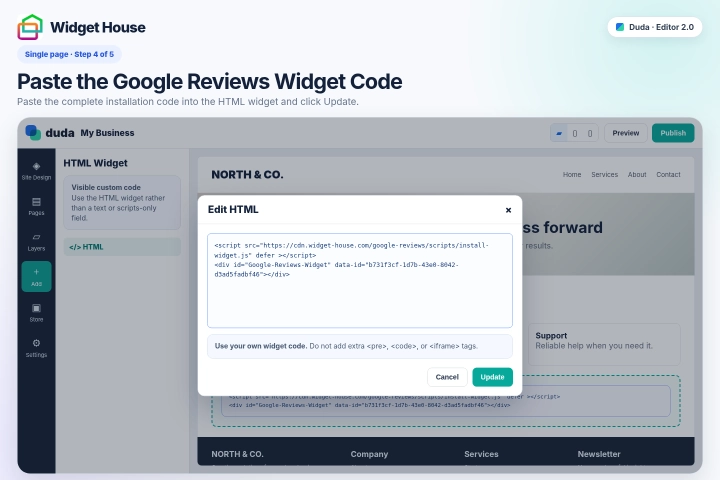
Open the HTML widget and paste the complete Google Reviews Widget installation code from your Widget House dashboard.
Keep the loading <script> and the Google Reviews <div> container together and in the original order.
Do not remove, split, rename, or change any part of the installation code.
Do not wrap the code in additional <pre>, <code>, or <iframe> tags.
Click Update to apply the code to the HTML widget.
The code shown in the screenshots is an example. Always use the installation code generated for your own widget so the correct reviews, settings, and design are displayed.
Duda's editor or design panel may not fully reflect custom code changes. Always verify the final result on the published website.
Step 4: Paste the Google Reviews Widget Code
Adjust the width, alignment, margins, or surrounding row spacing if necessary.
Use Duda's desktop, tablet, and mobile views to check the widget at different screen sizes.
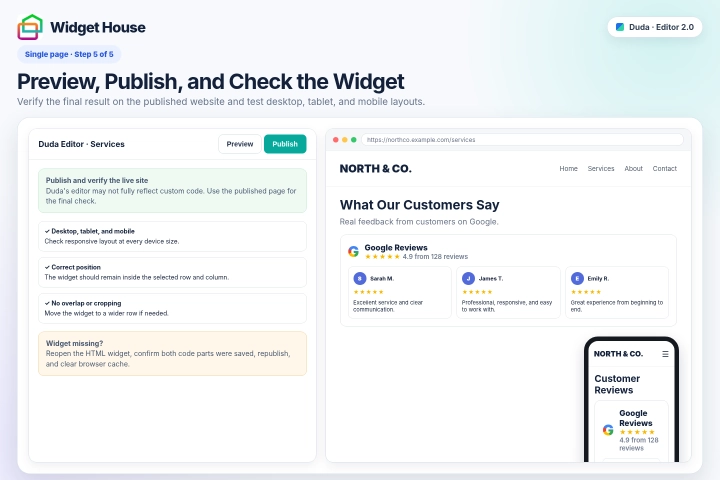
Click Preview to review the page, then click Publish or Republish to make the changes visible on the live website.
Open the published page in a new browser tab and make sure the Google Reviews Widget appears in the selected position.
Always use the published website for the final check because custom code can display differently inside the Duda editor or preview.
Make sure the reviews are fully visible and do not overlap text, images, buttons, forms, or other page content.
If the widget is too narrow, return to the editor and move the HTML widget to a wider row or column.
If the widget does not appear, reopen the HTML widget and confirm that both the <script> and <div> were saved.
You may also need to republish the website, refresh the live page, open it in a private browser window, or clear your browser cache.
Step 5: Preview, Publish, and Check the Widget
Show the widget on All pages
Show It on All Pages of Your Website
Because the Google Reviews Widget is static, we recommend placing it in Duda's shared Footer when you want it to appear across your website.
The Footer is the same on each page of a Duda website, which gives the widget a consistent and controlled visible position.
The widget will appear on every page and device where the shared Footer is visible.
Open any page in the Duda editor and scroll to the bottom of the page.
Click the Footer or hover over its upper edge and select Footer to open its editing controls.
Before you begin: Create a site backup or test the Footer installation on a duplicate website before adding custom code to the live site.
Do not place the complete static widget only in Settings → Header HTML → Body End HTML. Body End can load code globally, but it does not provide the same visual control as an HTML widget placed inside the shared Footer.
Step 1: Open the Shared Footer

Choose the exact location in the Footer where you want the Google Reviews Widget to appear.
The Footer content can be edited in the same way as regular page content.
If necessary, add or select a wide row and column for the reviews.
A full-width position above the main footer links, contact details, social icons, newsletter form, or copyright information is usually suitable.
Make sure the selected area has enough horizontal space for the Google Reviews layout that you created in Widget House.
Check that the Footer is not hidden on the current page or device size before adding the widget.
Step 2: Choose the Widget Position in the Footer

Editor 2.0: Click Add → Elements, then search for HTML.
Classic Editor: Open the Widgets panel and find the HTML widget.
Drag the HTML widget into the selected Footer row or column.
Placing the HTML widget in the Footer makes it available on every page and device where the shared Footer is visible.
Add only one copy of the HTML widget to the Footer to avoid displaying the reviews more than once.
Step 3: Add an HTML Widget to the Footer

Open the Footer HTML widget and paste the complete Google Reviews Widget installation code from your Widget House dashboard.
Keep the loading <script> and the Google Reviews <div> container together and in the original order.
Do not edit the script URL, container ID, widget ID, or any other part of the installation code.
Click Update to apply the code.
Adjust the Footer row width, spacing, or alignment so the widget fits naturally above the existing footer content.
Check the Footer in desktop, tablet, and mobile views.
Click Publish or Republish to make the updated Footer visible on the live website.
Duda's editor may not fully display the final custom code result. Always verify the widget on the published website.
The code shown in the screenshots is an example. Always use the installation code generated for your own widget before publishing the website.
Step 4: Paste the Widget Code and Publish the Website

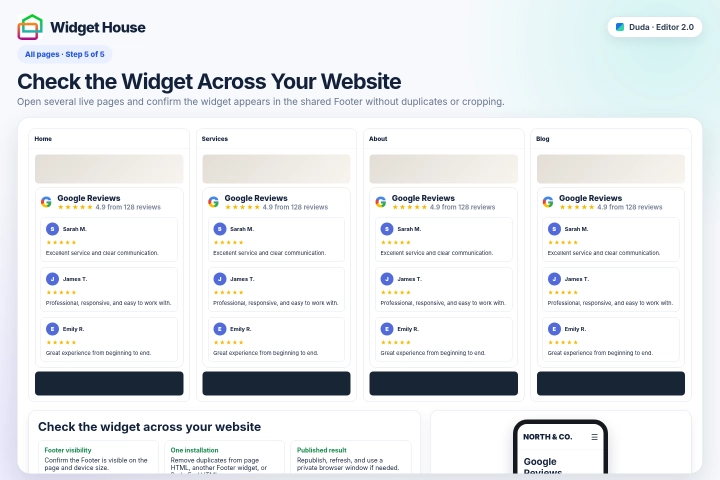
Open several live pages, such as the home page, contact page, service page, product page, and a blog post if applicable.
The Google Reviews Widget should appear in the same Footer position on every page and device where the shared Footer is visible.
Check the widget on desktop, tablet, and mobile devices. Make sure it is fully visible and does not overlap footer links, forms, buttons, or other content.
If the widget is missing from a particular page, check whether the Footer has been hidden on that page or on the current device size.
If the widget appears twice, make sure the installation code has not also been added directly to that page, to another Footer HTML widget, or to Body End HTML.
If the widget is too narrow or cropped, return to the Footer editor and adjust the width, margins, or spacing of its row and column.
If your latest changes are not visible, republish the website, refresh the live pages, open them in a private browser window, and clear your browser cache if necessary.
Step 5: Check the Widget Across Your Website
All set. Your Google Reviews Widget should now be working on your Duda website.
Need a hand with setup?
Contact our support team at support@widget-house.com and we will help you get the widget running on your Duda website.
support@widget-house.com