Facebook Pages do not support direct HTML or JavaScript widget embeds. This guide explains how to install the Widget House Google Reviews Widget on a public website page and connect that page to Facebook with an Action Button.
Before you begin, make sure you've created your widget and copied the installation code from your Widget House dashboard
Step-by-step guide to getting your Widget House widget code
Connect the Widget to Your Facebook Page
Add the widget to a single page
The standard Widget House installation code cannot be embedded directly into a Facebook Page.
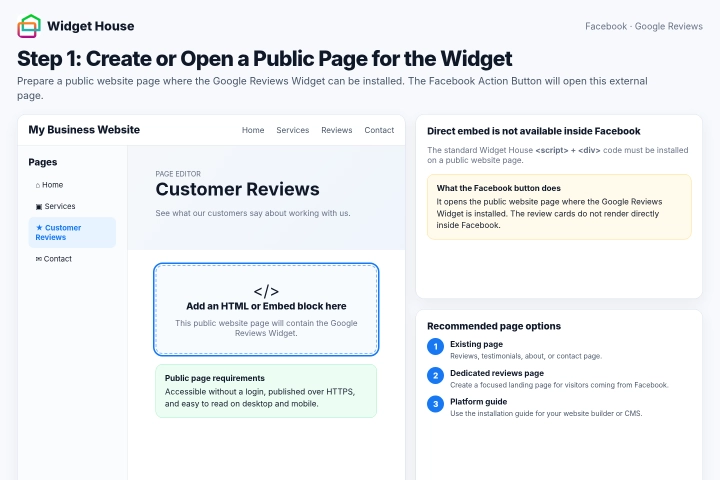
First, create or open a public page on your own website where you can install the Google Reviews Widget.
You can use an existing reviews, testimonials, about, or contact page, or create a dedicated page specifically for customer reviews.
The page must provide an HTML, Embed, Custom HTML, Custom Code, or similar element that accepts HTML and JavaScript.
If you need help installing the widget on your website, follow the general website installation guide or select the guide for your website platform.
Important: This method does not display the Google Reviews Widget directly inside Facebook. The Facebook Action Button opens the public website page where the widget is installed.
Step 1: Create or Open a Public Page for the Widget
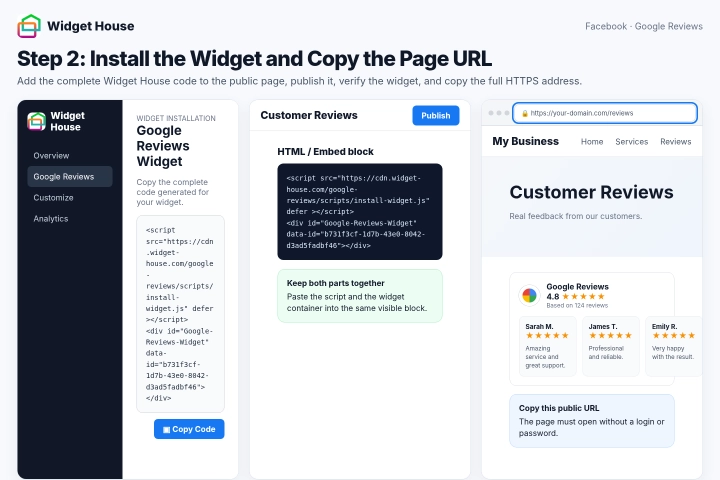
Open your Widget House dashboard and copy the complete installation code generated for your Google Reviews Widget.
Paste the complete installation code into a visible HTML or Embed block on the public website page.
Keep the loading <script> and the Google Reviews <div> container together and in the original order.
Do not remove, split, rename, or change any part of the installation code.
Publish or update the website page and open it in a new browser tab.
Make sure the Google Reviews Widget loads correctly and that the page can be opened without signing in, entering a password, or requesting access.
Check the page on desktop and mobile devices. Make sure the reviews are fully visible and the page is suitable for visitors arriving from Facebook.
Copy the complete public HTTPS URL from the browser address bar.
The code shown in the screenshots is an example. Always use the installation code generated for your own widget.
Step 2: Install the Widget and Copy the Page URL
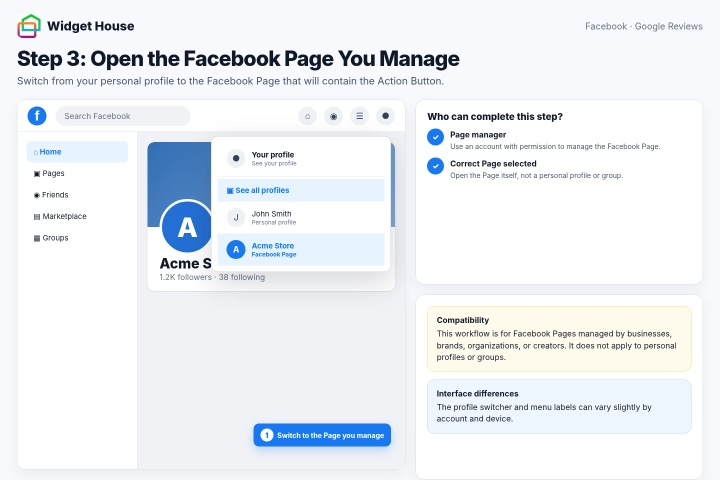
Log in to Facebook using an account that has permission to manage the required Facebook Page.
Open the Facebook Page where you want to add the link to your Google Reviews Widget.
If you are currently using your personal profile, open the profile menu and switch to the Facebook Page that you manage.
Make sure you are viewing the Page itself rather than your personal profile or the Page inside Business Suite.
Compatibility: This method is intended for Facebook Pages managed by businesses, brands, organizations, or creators. It does not apply to personal profiles or Facebook groups.
Step 3: Open the Facebook Page You Manage
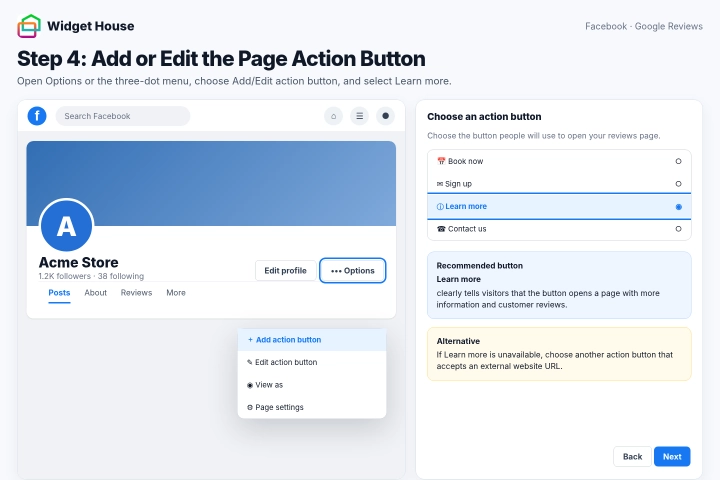
Below the Page cover photo, click Options. Depending on your Facebook interface, this control may appear as a three-dot menu.
Select Add action button.
If the Page already has an Action Button, select Edit action button instead.
Choose Learn more as the button type. This is usually the clearest option for directing visitors to a page containing customer reviews.
If Learn more is not available in your Page interface, select another Action Button that allows you to enter an external website URL.
Click Next to continue.
Step 4: Add or Edit the Page Action Button
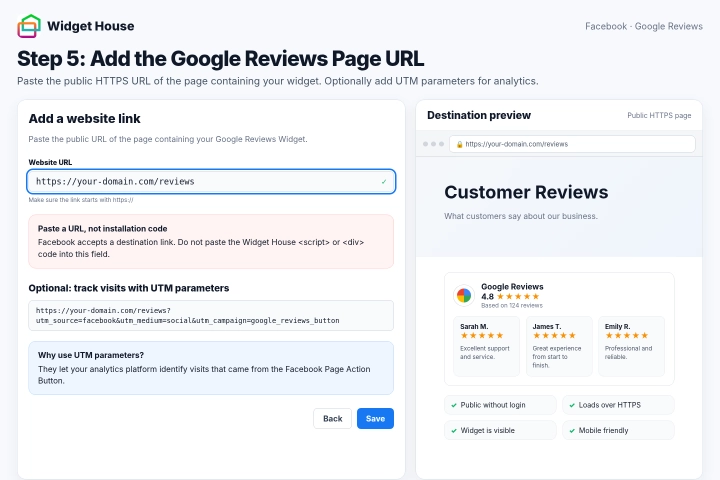
Select the option to connect the Action Button to a website.
Paste the complete public URL of the website page containing your Google Reviews Widget.
Make sure the URL begins with https:// and opens the exact page where the widget is displayed.
Do not paste the Widget House <script> or <div> installation code into Facebook. The Action Button accepts a destination URL, not HTML or JavaScript.
Optional: Add UTM parameters to the URL if you want to track visits from the Facebook Action Button in Google Analytics or another analytics platform.
For example: https://your-domain.com/reviews?utm_source=facebook&utm_medium=social&utm_campaign=google_reviews_button
Review the destination and click Save.
Step 5: Add the Google Reviews Page URL
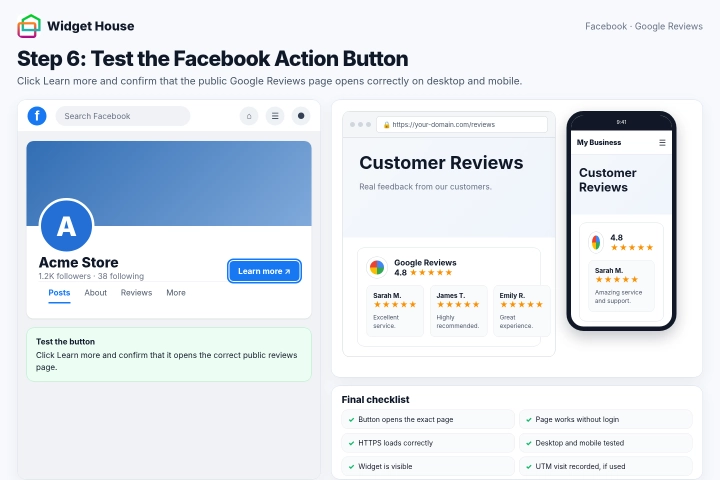
Return to your Facebook Page and click the new Learn more Action Button.
The button should open the public website page containing your Google Reviews Widget.
Test the Action Button on both desktop and mobile devices.
For an additional check, open the Facebook Page in a private browser window or ask another person to test the button.
Make sure the destination page is public, loads over HTTPS, and displays the complete Google Reviews Widget without requiring a login.
If the Action Button opens the wrong page or displays an error, edit the button and check the destination URL.
If the website page opens but the Google Reviews Widget is missing, review the widget installation on your website rather than the Facebook Page settings.
If you added UTM parameters, check your analytics platform after testing the button and confirm that the visit was recorded correctly.
Step 6: Test the Facebook Action Button
All set. Your Facebook Page Action Button should now open the page with your Google Reviews Widget.
You can update the widget's reviews, layout, colors, and other settings anytime from your Widget House dashboard.
Need a hand with setup?
Contact our support team at support@widget-house.com and we will help you connect the widget to your Facebook Page.
support@widget-house.com