Widget House automatically renders the Google Reviews Widget inside its own iframe. You only need to add the standard installation code to a visible HTML or Embed block in the exact position where you want the reviews to appear.
Before you begin, make sure you've created your widget and copied the installation code from your Widget House dashboard
Step-by-step guide to getting your Widget House widget code
Add the Google Reviews Widget to Your Website
Add the widget to a single page
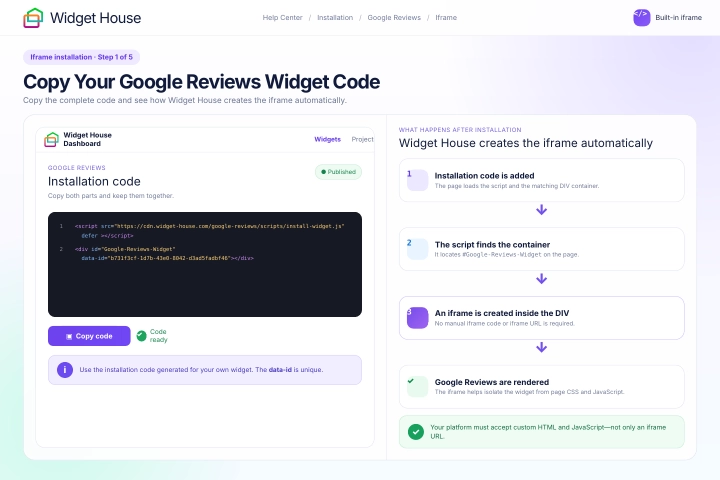
Open your Widget House dashboard and select the Google Reviews Widget that you want to install.
Copy the complete installation code generated for your widget. You can also follow our step-by-step guide to getting your Widget House widget code.
The installation code contains two parts: a loading <script> and a <div> container with your unique widget ID.
You do not need to create an iframe manually. When the page loads, the installation script finds the Google Reviews container, creates an iframe inside it, and renders the widget within that iframe.
The iframe provides an isolated environment for the widget and helps reduce conflicts with your website's CSS and JavaScript.
Important: Your website platform must provide a field that accepts custom HTML and JavaScript. If it accepts only an iframe URL, the standard Widget House installation code cannot be added there directly.
Step 1: Copy Your Google Reviews Widget Code
Open the page or website layout where you want to display the Google Reviews Widget.
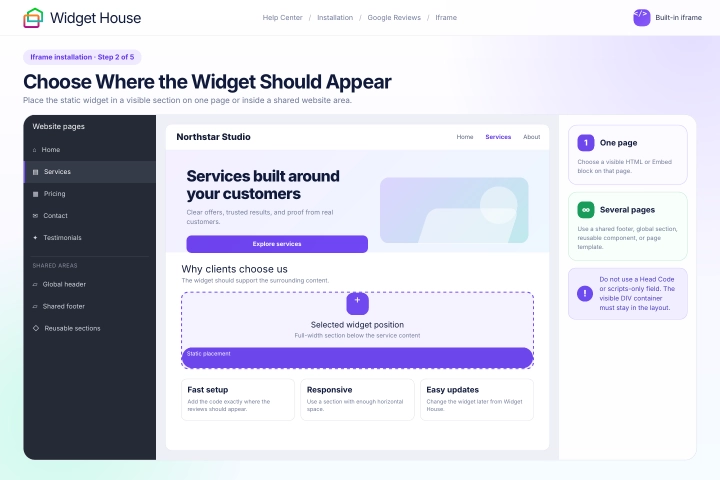
The Google Reviews Widget is static, which means it appears exactly where its <div> container is placed in the website layout.
To display the widget on one page, choose a visible section on that page. For example, you can place it below a service description, above a contact form, before a call-to-action, or near the bottom of the page.
To display the widget across several pages, choose a visible shared footer, global section, reusable component, master layout, or page template supported by your website platform.
A full-width section above the main footer content is usually a suitable location for a site-wide Google Reviews Widget.
Do not place the static widget in a Head Code, tracking-code, or scripts-only field. Both the loading script and the visible Google Reviews container must be added to the page layout.
Step 2: Choose Where the Widget Should Appear
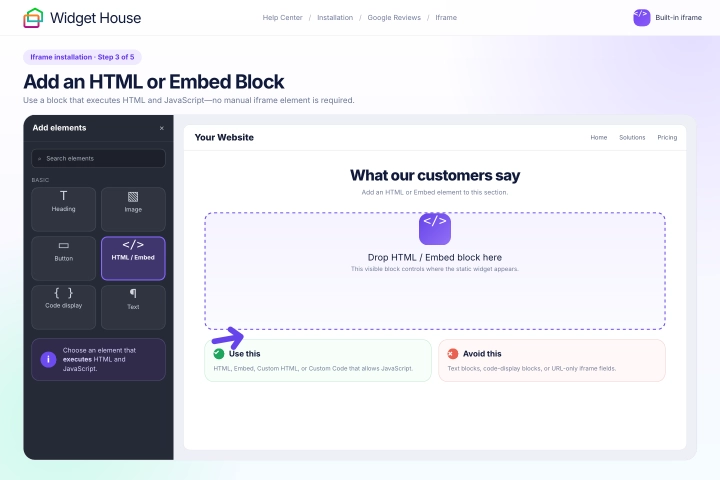
Add an HTML, Embed, Custom HTML, Custom Code, or equivalent element to the selected position.
The exact name of this element depends on your website builder or content management system.
Use an element that executes both HTML and JavaScript. Do not use a text block or code-display element that shows the installation code to visitors instead of running it.
If you want the widget to appear across several pages, make sure the HTML or Embed block belongs to a shared section, footer, component, or template rather than to only one individual page.
You do not need to add a separate <iframe> element. The Widget House installation script creates the iframe automatically.
Step 3: Add an HTML or Embed Block
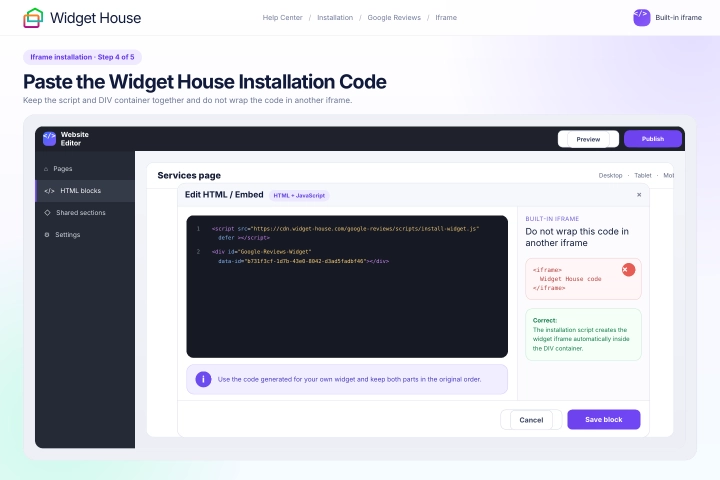
Paste the complete Google Reviews Widget installation code from your Widget House dashboard into the selected HTML or Embed block.
Keep the loading <script> and the Google Reviews <div> container together in the same block and in the original order.
Do not remove, split, rename, or change any part of the installation code.
Do not wrap the standard Widget House installation code in another manually created iframe. The script creates the widget iframe automatically inside the container.
The code shown in the screenshots is an example. Always use the installation code generated for your own widget so the correct reviews, settings, and design are displayed.
Step 4: Paste the Widget House Installation Code
Save and publish the updated page, shared section, footer, component, or page template.
Open the live website in a new browser tab and make sure the Google Reviews Widget appears in the selected position.
If you added the widget to a shared website area, open several pages and confirm that it appears wherever that shared section or template is used.
Check the widget on desktop, tablet, and mobile devices. Make sure the reviews are fully visible and do not overlap text, navigation links, buttons, forms, or footer content.
If the installation code appears as text instead of a rendered widget, make sure you used an HTML or Embed element rather than a text or code-display block.
If the widget does not appear, reopen the HTML or Embed block and confirm that both the <script> and <div> were saved. Some website platforms remove JavaScript from custom HTML fields or restrict external scripts.
If the widget is missing from only one page, check whether that page uses a different template or does not include the shared section containing the widget.
If the widget appears twice, make sure the installation code has not been added both to the shared layout and directly to the individual page.
You may also need to refresh the live page, open it in a private browser window, or clear your website and browser caches.
Step 5: Publish and Test the Widget

All set. Your Google Reviews Widget should now be working inside its built-in iframe.
You can update the widget's reviews, layout, colors, and other settings anytime from your Widget House dashboard.
Need a hand with setup?
Contact our support team at support@widget-house.com and we will help you get the widget running on your website.
support@widget-house.com