Want to display customer reviews from Google in your OpenCart store? This guide explains how to create a Widget House Google Reviews module, display it on selected pages, or add it across your storefront.
Before you begin, make sure you've created your widget and copied the installation code from your Widget House dashboard
Step-by-step guide to getting your Widget House widget code
Choose How You Want to Display the Widget
Add the widget to a single page
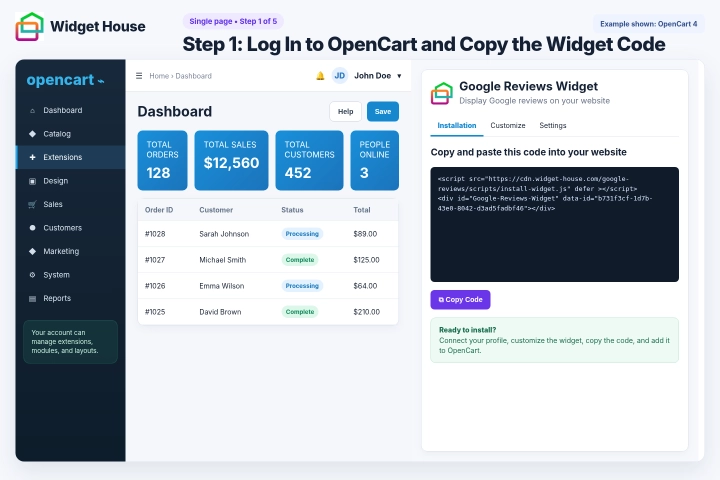
Log in to your OpenCart admin panel using an account that can manage extensions, modules, and layouts.
Open your Widget House dashboard and copy the complete installation code generated for your Google Reviews Widget.
The installation code contains a loading <script> and a <div> container with your unique widget ID. Keep both parts together and in the original order.
Version note: This guide follows the standard OpenCart workflow using an HTML Content module and Design → Layouts. Menu labels, icons, and editor controls may look slightly different in OpenCart 3, OpenCart 4, or stores with a customized admin theme.
Step 1: Log In to OpenCart and Copy the Widget Code
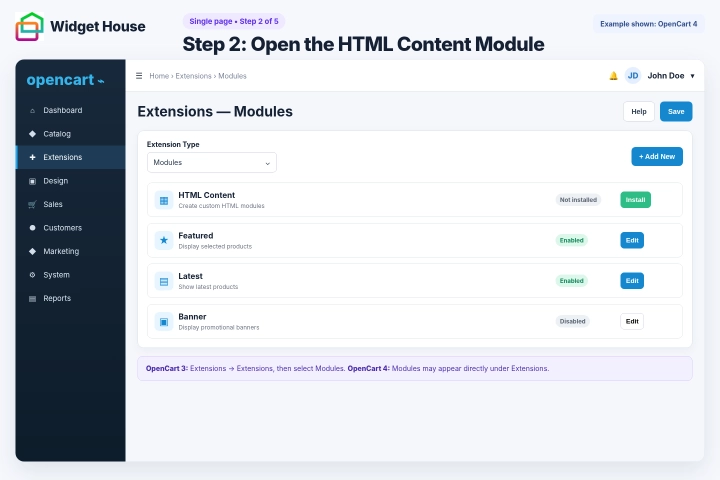
Open the Extensions section and go to Modules.
In OpenCart 3, the usual path is Extensions → Extensions, followed by selecting Modules from the extension type menu. In OpenCart 4, Modules may appear directly under Extensions.
Find HTML Content in the module list.
If the module is not installed, click Install. Then click Add New, the + icon, or the corresponding action available in your OpenCart version.
If your store does not include HTML Content, use a compatible Custom HTML module or ask your store developer to provide a module that accepts both HTML and JavaScript.
Step 2: Open the HTML Content Module
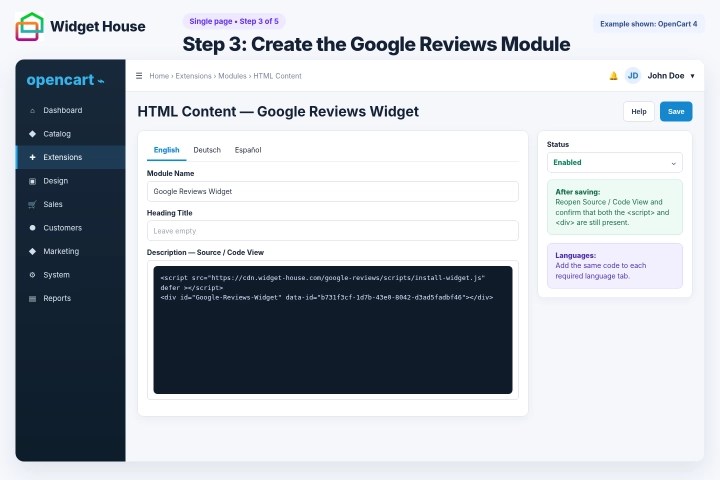
Enter a clear module name, such as Google Reviews Widget. This name is used only to identify the module in the OpenCart admin panel.
If a Heading Title field is displayed, leave it empty unless you want OpenCart to show an additional heading above the reviews.
In the Description or content editor, switch to Source, Code View, or the equivalent HTML editing mode.
Paste the complete Google Reviews Widget installation code from your Widget House dashboard.
Keep the <script> and the Google Reviews <div> container together and in the original order. Do not remove, split, rename, or change any part of the code.
If your store has several active languages and the editor displays language tabs, paste the same installation code into each language version where the widget should be available.
Set Status to Enabled and click Save.
After saving, reopen the module and confirm that the complete <script> and <div> are still present in Source or Code View.
The code shown in the screenshots is an example. Always use the installation code generated for your own widget so the correct reviews, settings, and design are displayed.
Step 3: Create the Google Reviews Module
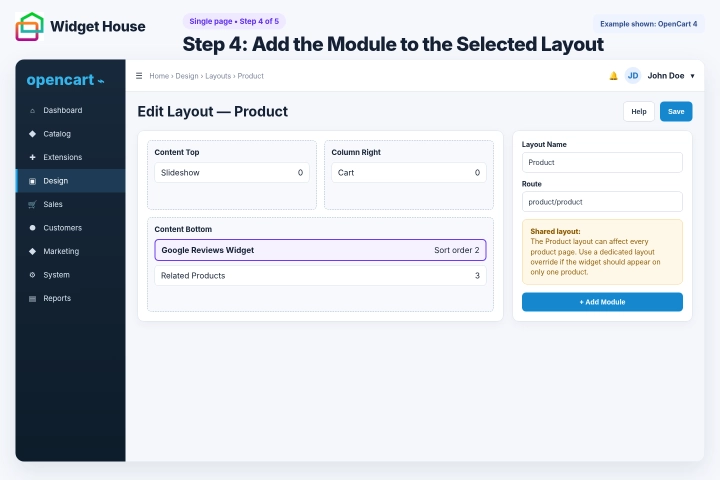
Go to Design → Layouts.
Important: OpenCart layouts are often shared by multiple pages. For example, the Product layout can apply to all product pages, while the Category layout can apply to all category pages.
Find the layout used by the page where you want the Google Reviews Widget to appear and click Edit.
To display the widget on only one specific product, category, information page, article, or another resource, create a dedicated layout and assign it through that resource's Design or Layout Override setting, if available in your OpenCart version.
Choose the module position. For a static reviews section, Content Bottom is usually a suitable option. You can also use Content Top if the reviews should appear near the beginning of the main content.
Avoid Column Left and Column Right for wide carousel or grid layouts unless your widget is specifically designed for a narrow sidebar.
Click Add Module, select Google Reviews Widget, set its sort order if required, and save the layout.
Step 4: Add the Module to the Selected Layout
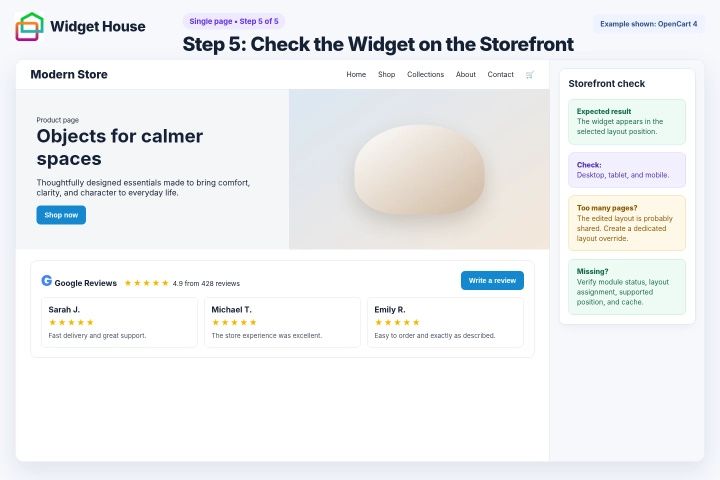
Open the selected storefront page in a new browser tab.
Make sure the Google Reviews Widget appears in the expected layout position.
Check the page on desktop, tablet, and mobile devices. Make sure the reviews are fully visible and do not overlap product information, buttons, filters, forms, or other content.
If the widget appears on more pages than expected, those pages probably use the same OpenCart layout. Create a dedicated layout and assign it only to the required resource.
If the widget is missing, make sure the module status is Enabled, the correct layout is assigned, the module was added to a position supported by your theme, and the complete installation code was saved.
If the installation code appears as text or the <script> tag is missing, reopen the HTML Content module in Source or Code View and paste the complete code again.
You may also need to clear the OpenCart cache, theme cache, browser cache, server cache, or CDN cache.
Step 5: Check the Widget on the Storefront
Show the widget on All pages
Show It on All Pages of Your Website
Important: OpenCart does not use one universal visual layout for every storefront page. To display the static widget across your store, you must add the Google Reviews module to every layout where it should appear.
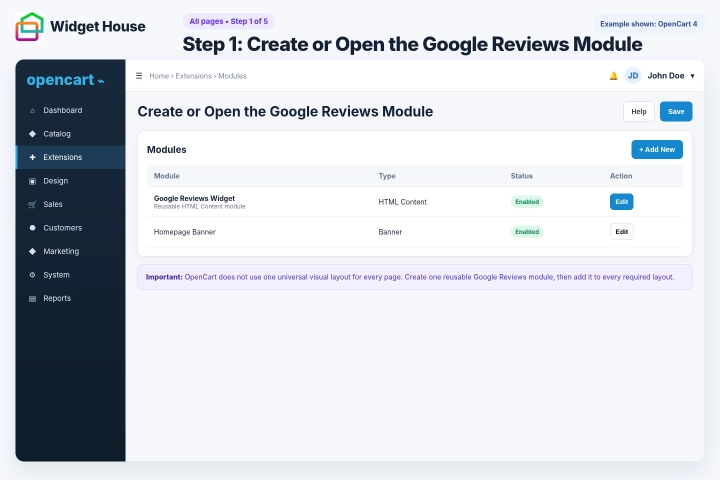
Open the Extensions section and go to Modules. In OpenCart 3, this may require opening Extensions → Extensions and selecting Modules as the extension type.
Find HTML Content.
Create a new module named Google Reviews Widget, or open the module if you have already created it.
For a static Google Reviews Widget, using one reusable module is easier and safer than inserting the code directly into your theme's footer.twig file.
Step 1: Create or Open the Google Reviews Module
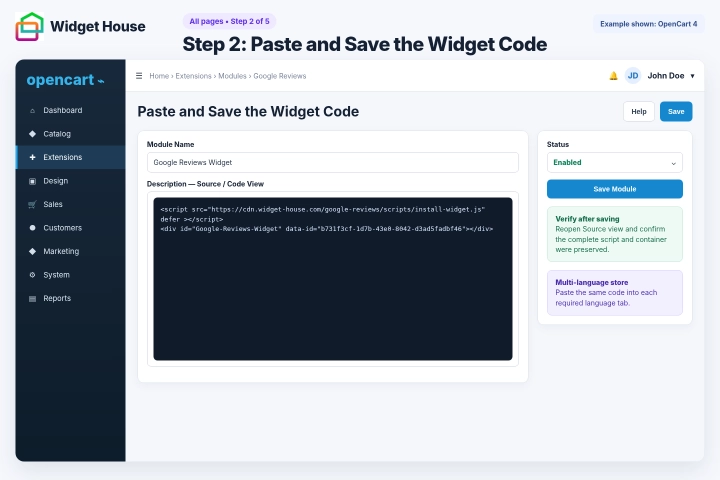
Switch the module content editor to Source, Code View, or the equivalent HTML editing mode.
Paste the complete Google Reviews Widget installation code from your Widget House dashboard.
Keep the loading <script> and the Google Reviews <div> container together and in the original order.
If your store has several active languages, add the same installation code to each required language tab.
Set Status to Enabled and click Save.
Reopen the module and make sure OpenCart has preserved the complete <script> and <div> in Source or Code View.
Do not edit the script URL, widget ID, container ID, or any other part of the installation code.
Step 2: Paste and Save the Widget Code
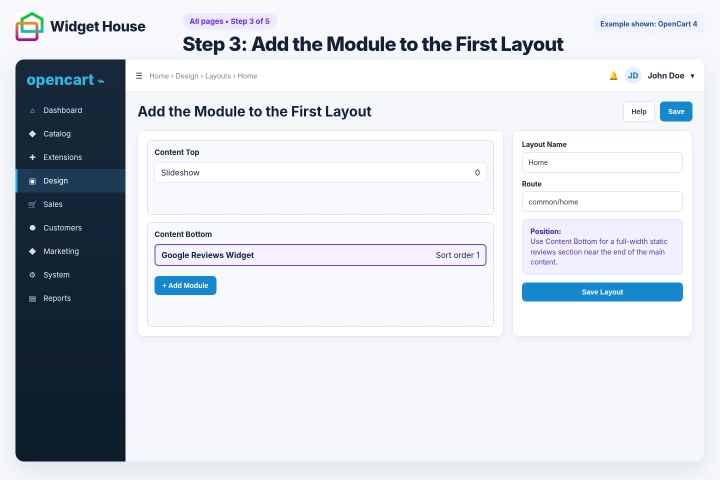
Go to Design → Layouts and open the first layout where the widget should appear.
Select a visible module position, such as Content Bottom.
Click Add Module and select Google Reviews Widget from the module list.
Set the sort order if the layout contains several modules in the same position. Lower sort-order values usually appear before higher values.
Click Save before opening the next layout.
Step 3: Add the Module to the First Layout
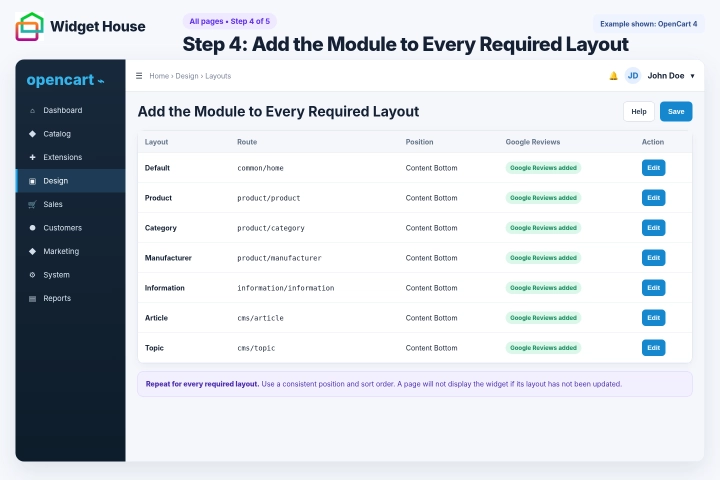
Repeat the previous step for every storefront layout where the Google Reviews Widget should appear.
Depending on your store, this can include layouts such as Default, Home, Product, Category, Manufacturer, Information, Article, Topic, and layouts created by your theme or extensions.
Use the same module position and a consistent sort order wherever possible so the widget appears in a similar place across the storefront.
If your installation contains several stores or themes, check the layouts and available positions used by each storefront separately.
A page will not display the widget if it uses a layout where the Google Reviews module has not been added.
If a layout does not include the selected module position, choose another visible position or ask your theme developer to add a suitable full-width module area.
Step 4: Add the Module to Every Required Layout
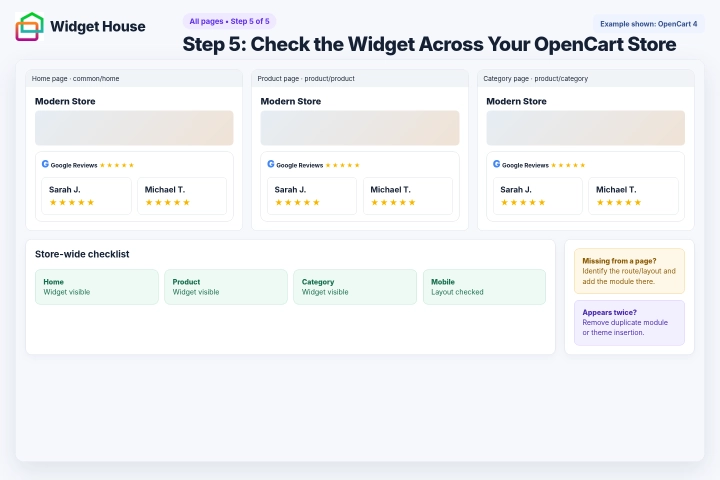
Open several storefront pages, such as the home page, a product page, a category page, an information page, and a blog article if applicable.
The Google Reviews Widget should appear in the selected position on every page whose layout contains the module.
Check the widget on desktop, tablet, and mobile devices. Make sure it is fully visible and does not overlap navigation, product controls, filters, forms, buttons, or footer content.
If the widget is missing from a page, identify which layout that page uses and add the Google Reviews module to that layout.
Checkout, customer account, extension-generated, or custom-theme pages can use separate routes or layouts and might require an additional module assignment.
If the widget appears twice, open the affected layout and make sure the module has not been added more than once or inserted separately through the theme files.
If your latest changes are not visible, clear the OpenCart, theme, browser, server, and CDN caches where applicable.
Step 5: Check the Widget Across Your OpenCart Store
All set. Your Google Reviews Widget should now be working on your OpenCart store.
Need a hand with setup?
Contact our support team at support@widget-house.com and we will help you get the widget running on your OpenCart store.
support@widget-house.com