Want to display customer reviews from Google on your Weebly website? This guide explains how to add the Widget House Google Reviews Widget to one selected page or display it across your site by updating the page layouts used by your theme.
Before you begin, make sure you've created your widget and copied the installation code from your Widget House dashboard
Step-by-step guide to getting your Widget House widget code
Choose How You Want to Display the Widget
Add the widget to a single page
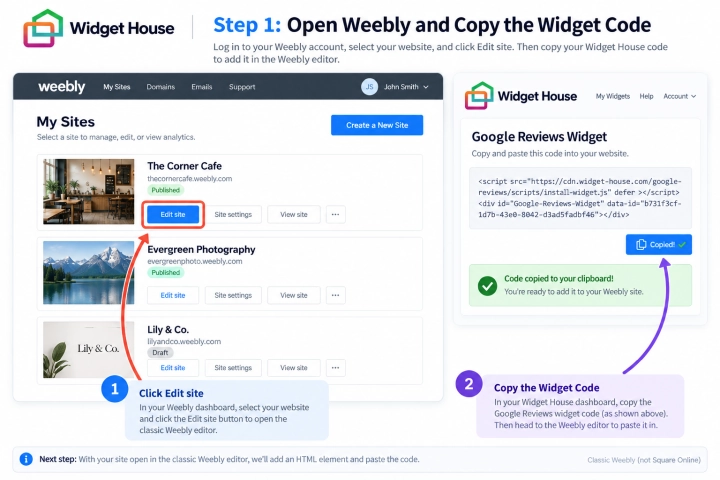
Log in to your Weebly account, select the website where you want to install the Google Reviews Widget, and click Edit site.
Open your Widget House dashboard and copy the complete installation code for your Google Reviews Widget.
Keep the installation code ready while you open the required page in the Weebly editor.
Note: This guide follows the classic Weebly website editor, where the Build, Pages, and Theme tabs are available. If your account opens the Square Online editor instead, the available menus and installation steps will be different.
Step 1: Open Weebly and Copy the Widget Code
Open the Pages tab and select the page where you want the Google Reviews Widget to appear.
Return to the Build tab and scroll to the section where you want visitors to see the reviews.
The Google Reviews Widget is static, which means it appears exactly where its Embed Code element is placed.
For example, you can place the widget below a service description, above a contact form, before a call-to-action, or near the bottom of the page.
Choose a full-width area or a sufficiently wide column so the reviews have enough horizontal space.
Step 2: Open the Page and Choose the Widget Position
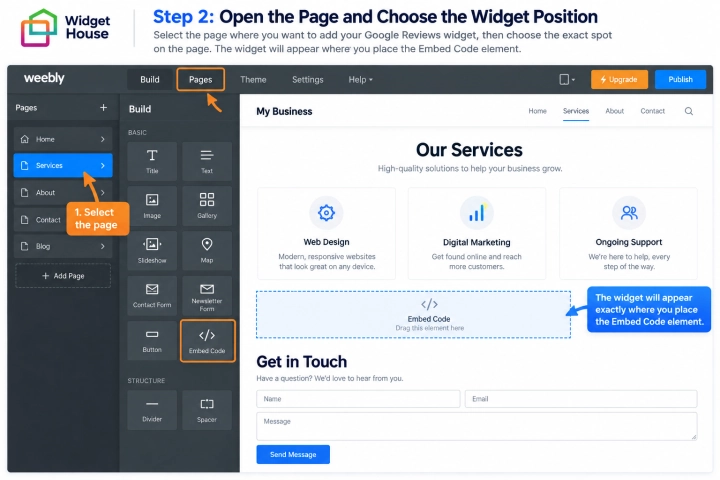
In the Build panel, find the Embed Code element.
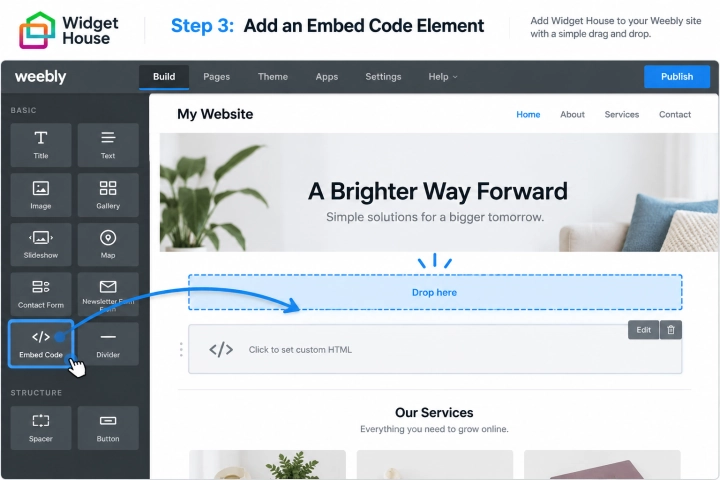
Drag the Embed Code element from the left-hand panel to the exact position where you want the Google Reviews Widget to appear.
Wait until the blue placement indicator appears in the required section or column, and then release the element.
Click the new element where it says Click to set custom HTML to open its settings.
Step 3: Add an Embed Code Element
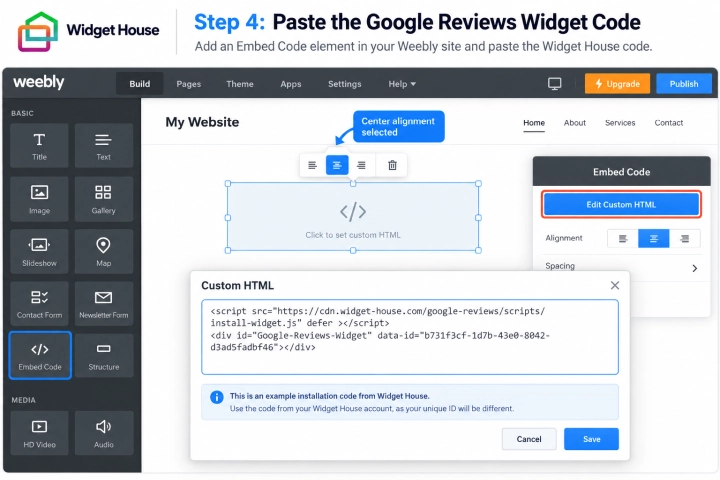
If alignment controls are displayed, select the center alignment option so the widget is positioned consistently inside the element.
Click Edit Custom HTML.
Paste the complete Google Reviews Widget installation code from your Widget House dashboard into the custom HTML field.
Keep the script and widget container together in the same Embed Code element and in the original order. Do not remove, split, or change any part of the installation code.
Click outside the custom HTML field to apply the code.
The code shown in the screenshots is an example. Always use the installation code generated for your own widget so the correct reviews and design are displayed.
Step 4: Paste the Google Reviews Widget Code
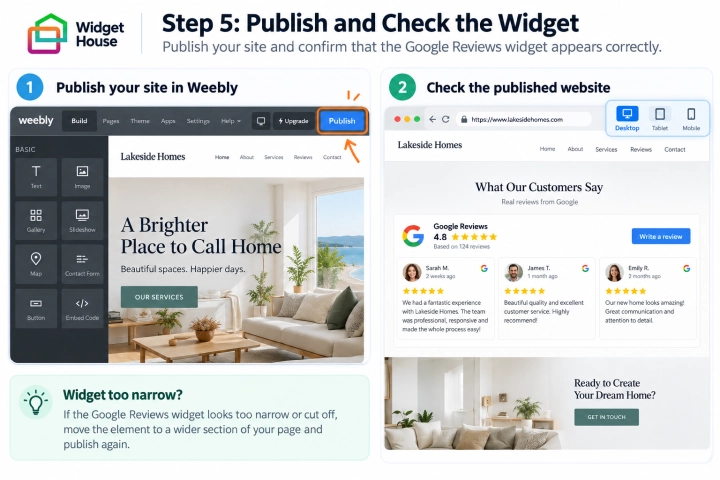
Click Publish in the upper-right corner of the Weebly editor.
Open the published page in a new browser tab and make sure the Google Reviews Widget appears in the selected position.
The widget might not appear inside the Weebly editor or might look cropped before the site is published. Use the live website or a private browser window to confirm the final result.
Check the page on desktop, tablet, and mobile devices. Make sure the widget is fully visible and does not overlap text, buttons, forms, or other content.
If the reviews are too narrow or appear cut off, return to the editor and move the Embed Code element to a wider section or column. Then publish the site again.
If the widget does not appear, make sure both parts of the installation code were saved inside the same Embed Code element.
Step 5: Publish and Check the Widget
Show the widget on All pages
Show It on All Pages of Your Website
Because the Google Reviews Widget is static, it must be added to a controlled position inside every page layout used by your Weebly theme.
Before you begin: Save a copy of your current theme or copy the original layout code to a safe place before making changes. If you are not comfortable editing HTML, ask a website developer for help or add the widget separately to the required pages.
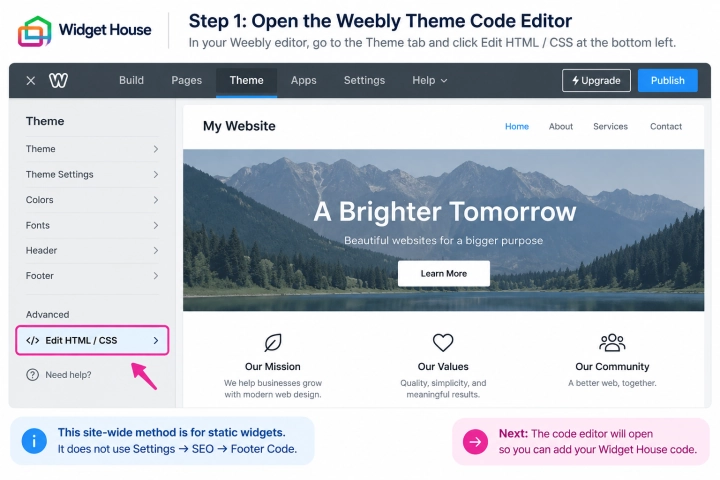
In the Weebly website editor, open the Theme tab.
Scroll to the bottom of the left-hand panel and click Edit HTML / CSS.
This opens the theme code editor, where you can update the layouts shared by multiple pages.
Do not add the complete static widget code to Settings → SEO → Footer Code. That field can load scripts globally but does not provide a controlled visual position for the Google Reviews container.
Step 1: Open the Weebly Theme Code Editor
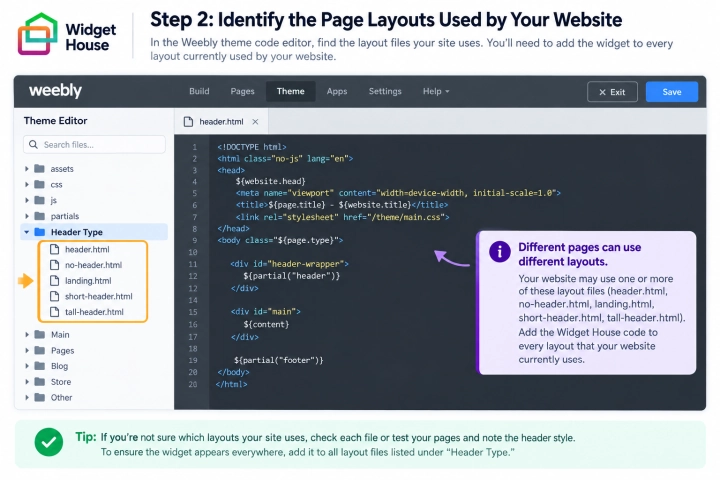
In the theme code editor, find the page layout files under Header Type.
Many classic Weebly themes include files such as header.html and no-header.html. Some themes can also include layouts such as landing.html, splash.html, short-header.html, or tall-header.html.
Each Weebly page uses one of these layouts. To display the Google Reviews Widget across your entire website, add the installation code to every layout that is currently used by your pages.
If you are unsure which layouts are used, return to the regular editor, open the Pages tab, and check the header or page layout selected for your different page types.
Step 2: Identify the Page Layouts Used by Your Website
Open the first layout file, such as header.html.
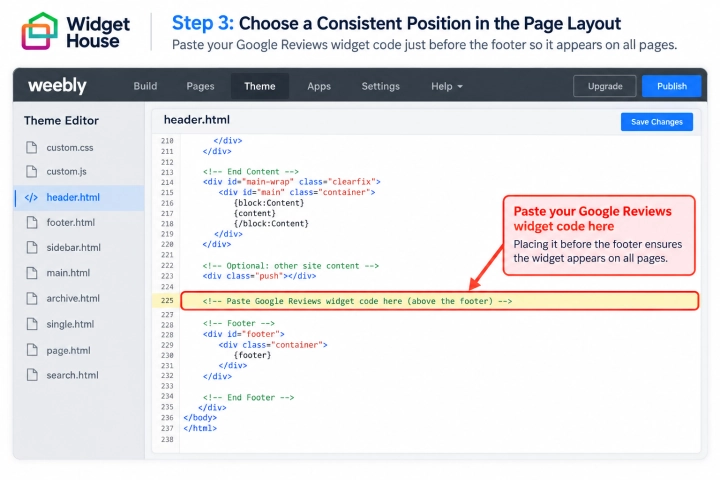
Find the footer markup near the bottom of the file. In many Weebly themes, it contains the {footer} placeholder, for example: <div id="footer">{footer}</div>.
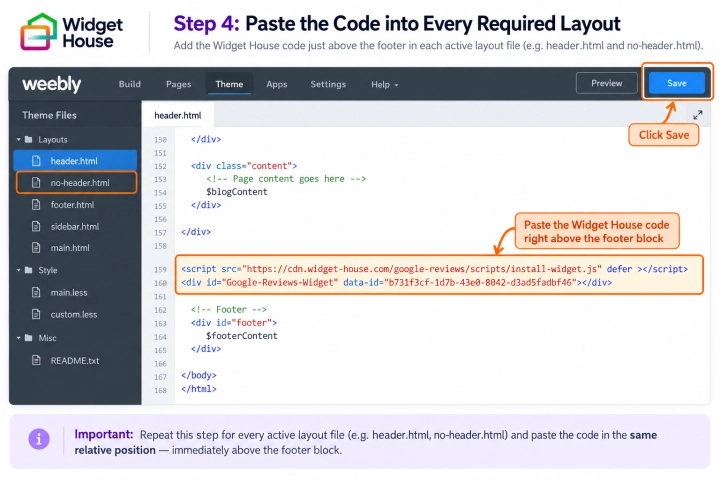
To display the Google Reviews Widget above the website footer, paste the installation code immediately before the footer block.
The exact footer markup may look different in a custom theme. Keep the widget code inside the <body> section, but do not paste it inside the {content} or {footer} placeholder, another script, or an existing HTML tag.
If you prefer another location, place the code between complete HTML blocks in the page body and use the same relative position in every layout.
Step 3: Choose a Consistent Position in the Page Layout
Paste the complete Google Reviews Widget installation code from your Widget House dashboard into the selected position in the first layout file.
Keep the script and widget container together and in the original order. Do not edit the script URL, widget ID, or HTML container.
Repeat the process for no-header.html and every other page layout currently used by your website.
Place the code in the same relative position in each file. A page will not display the widget if its layout file has not been updated.
Avoid adding the code both to a shared theme file and to the individual page layouts. Otherwise, the widget might appear twice.
Click Save in the upper-right corner of the theme code editor after all required layouts have been updated.
The code shown in the screenshots is an example. Use the installation code generated for your own widget before saving the theme.
Step 4: Paste the Code into Every Required Layout
Return to the regular Weebly website editor and click Publish.
Open several live pages that use different layouts, such as a page with a header, a page without a header, a landing page, a blog page, or a store page if applicable.
The Google Reviews Widget should appear in the same relative position on every page whose layout file contains the installation code.
Check the widget on desktop, tablet, and mobile devices. Make sure it is fully visible and does not overlap navigation, forms, buttons, footer content, or other page elements.
If the widget is missing from a specific page, check which page layout that page uses and add the installation code to the corresponding layout file.
If the widget appears twice, review the affected layout and shared theme files and remove the duplicate copy of the installation code.
If your latest changes are not visible, refresh the live page, open it in a private browser window, and confirm that the updated theme and website were both published.
Step 5: Publish and Check the Widget Across Your Website

All set. Your Google Reviews Widget should now be working on your Weebly website.
Need a hand with setup?
Contact our support team at support@widget-house.com and we will help you get the widget running on your Weebly website.
support@widget-house.com