Want to display customer reviews from Google on your Joomla website? This guide explains how to add the Widget House Google Reviews Widget to one selected page or display it across your website with a Custom module.
Before you begin, make sure you've created your widget and copied the installation code from your Widget House dashboard
Step-by-step guide to getting your Widget House widget code
Choose How You Want to Display the Widget
Add the widget to a single page
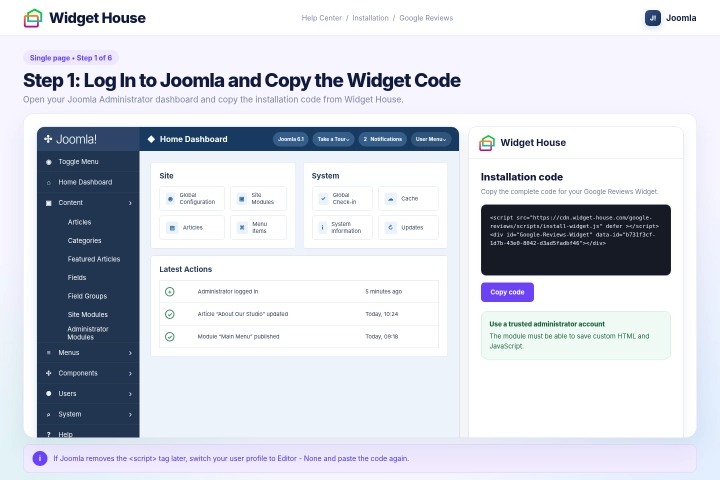
Log in to your Joomla Administrator dashboard using an account that can create and edit site modules and save custom HTML and JavaScript.
Open your Widget House dashboard and copy the complete installation code for your Google Reviews Widget.
The installation code contains JavaScript. If Joomla removes the <script> tag when the module is saved, open your Joomla user profile, go to Basic Settings, select Editor - None, and save your profile before pasting the code again.
Editor - None bypasses filtering performed by the visual editor, but Joomla's global Text Filters may still apply. If the script is still removed, ask a Super User to review Global Configuration → Text Filters and the editor settings. Do not disable HTML filtering for untrusted user groups.
Step 1: Log In to Joomla and Copy the Widget Code
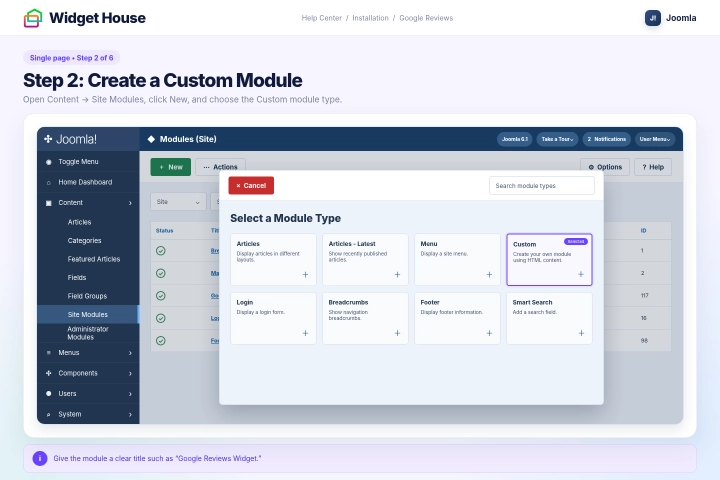
In the Joomla Administrator menu, go to Content → Site Modules.
Click New in the toolbar and select Custom from the list of available module types.
Enter a descriptive title, such as Google Reviews Widget. This title will help you identify the module in the Joomla dashboard.
You will hide the module title from website visitors in the next steps.
Step 2: Create a Custom Module
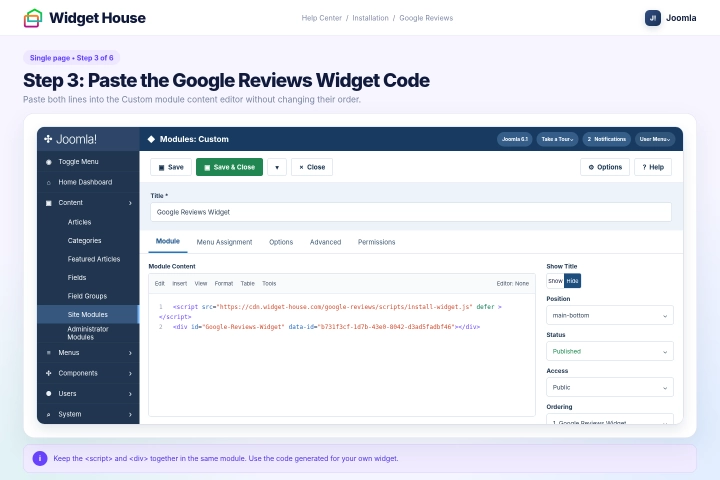
Paste the complete Google Reviews Widget installation code from your Widget House dashboard into the module content editor.
Keep the script and widget container together in the same Custom module and in the original order. Do not remove, split, or change any part of the installation code.
If a visual editor changes or removes the code, switch your Joomla user profile to Editor - None, reopen the module, and paste the complete code again.
The code shown in the screenshots is an example. Always use the installation code generated for your own widget so the correct reviews and design are displayed.
Step 3: Paste the Google Reviews Widget Code
The Google Reviews Widget is static, which means it appears in the template position selected for the Custom module.
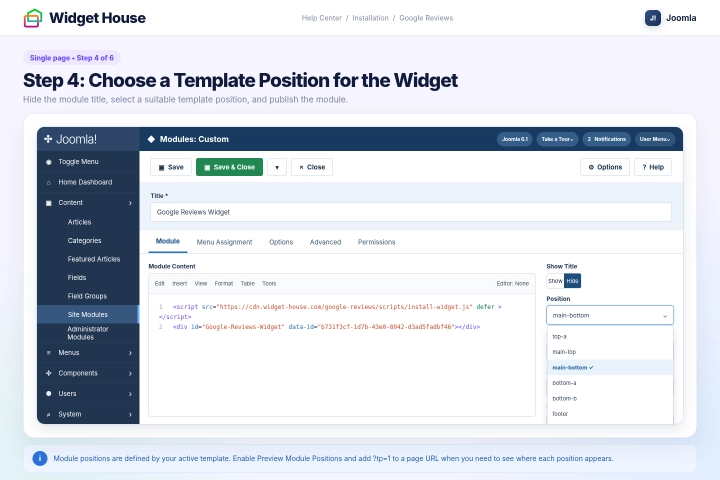
Set Show Title to Hide so the administrative module title is not displayed above the reviews.
Open the Position field and select the template position where you want the widget to appear.
Module positions are predefined by your active Joomla template. Choose a position inside the main page layout or near the bottom of the page where the widget has enough horizontal space.
If you are not sure where the available positions appear, go to System → Site Templates → Options, enable Preview Module Positions, and save the settings. Then add ?tp=1 to the end of a page URL, or &tp=1 if the URL already contains a question mark. Disable position preview again after choosing the required location.
Optional: If you need the widget directly inside an article rather than in a template position, use Joomla's Content - Load Modules feature. Give the module a dedicated custom position, such as google-reviews, and insert {loadposition google-reviews} at the required point in the article.
Set Status to Published and select the appropriate access level, usually Public.
Step 4: Choose a Template Position for the Widget
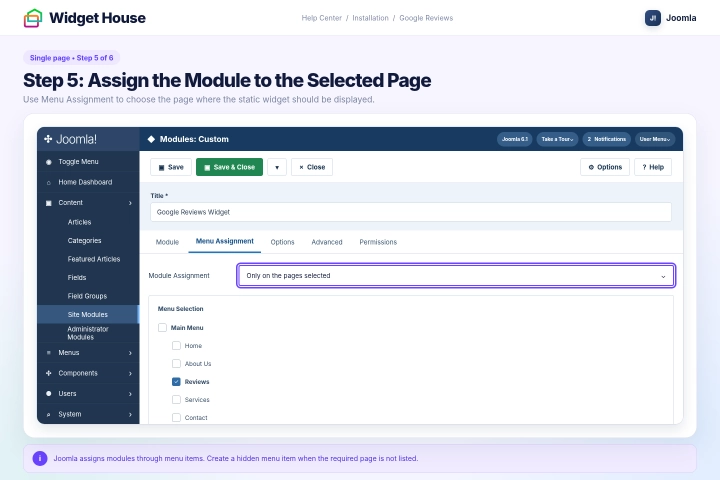
Open the Menu Assignment tab in the module settings.
In the Module Assignment menu, select Only on the pages selected.
Use the menu tree below the setting to select the page or pages where the Google Reviews Widget should appear.
Joomla assigns modules through menu items. Assigning the module to a menu item determines the page on which it is displayed.
If you cannot find the required page in the list, make sure the page is connected to a Joomla menu item. You can place the menu item in a hidden menu if you do not want its link to appear in your website navigation.
Step 5: Assign the Module to the Selected Page
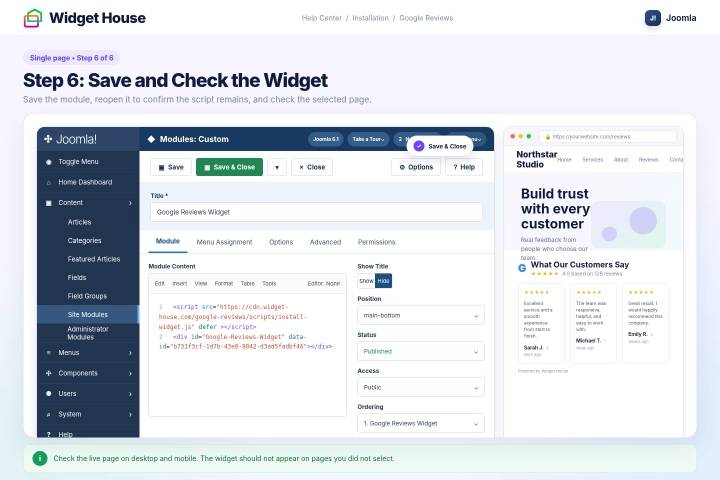
Click Save & Close to save and publish the Custom module.
Reopen the module and make sure the complete installation code, including the <script> tag, is still present.
Open the selected page on your live website and make sure the Google Reviews Widget appears in the chosen template position.
Open another page that was not selected in the Menu Assignment settings and confirm that the widget does not appear there.
Check the widget on desktop, tablet, and mobile devices. Make sure it is fully visible and does not overlap text, buttons, forms, or other page elements.
If the widget is missing, make sure the module is published, the correct template position and menu item are selected, the access level is set correctly, and Joomla has not removed the <script> tag.
You may also need to clear the Joomla cache, your browser cache, or the cache provided by your hosting service or optimization extension.
Step 6: Save and Check the Widget
Show the widget on All pages
Show It on All Pages of Your Website
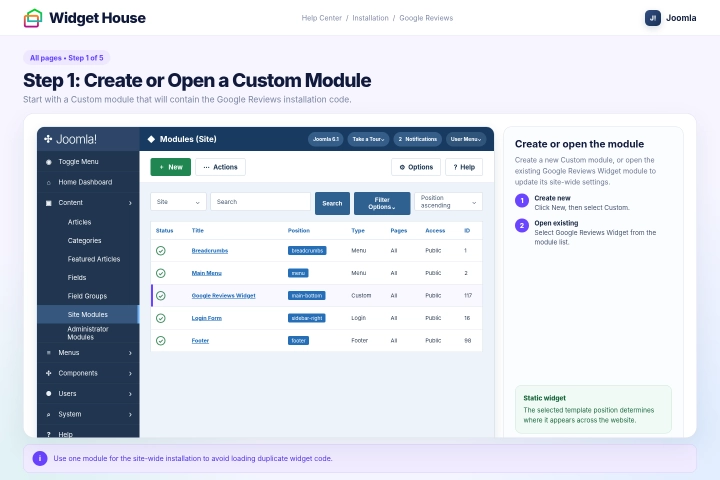
In the Joomla Administrator menu, go to Content → Site Modules.
Click New and select Custom. If you already created a Google Reviews Custom module and only want to change where it appears, open that module instead.
Enter a descriptive title, such as Google Reviews Widget. This title is used to identify the module in the Joomla dashboard and can be hidden from website visitors.
Because the Google Reviews Widget is static, the selected template position will determine where it appears across your website.
Step 1: Create or Open a Custom Module
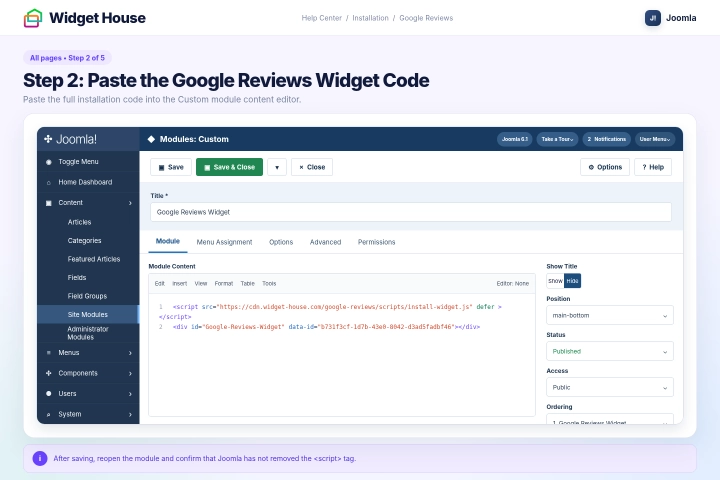
Paste the complete Google Reviews Widget installation code from your Widget House dashboard into the module content editor.
Keep the script and widget container together in the same Custom module and in the original order. Do not edit the script URL, widget ID, or HTML container.
If Joomla removes the <script> tag, switch your user profile to Editor - None, reopen the module, and paste the complete installation code again.
If the script is still removed, ask a Super User to review Global Configuration → Text Filters and the editor configuration before saving the module again.
The code shown in the screenshots is an example. Use the installation code generated for your own widget before publishing the module.
Step 2: Paste the Google Reviews Widget Code
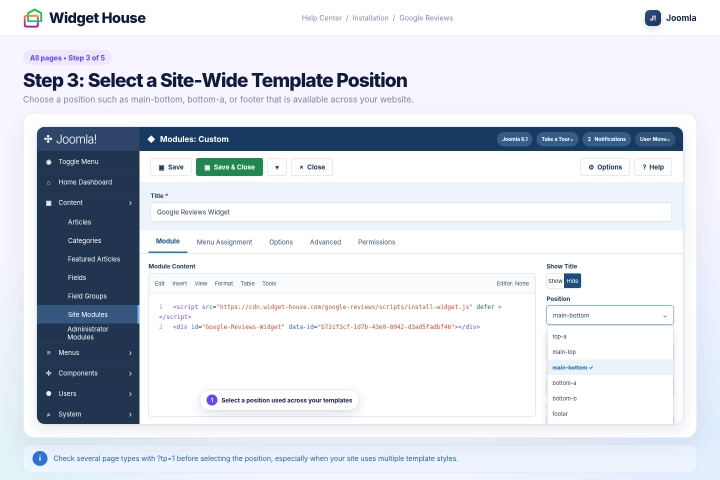
Set Show Title to Hide.
Open the Position field and select the template position where the Google Reviews Widget should appear.
Choose a position that is available across your website and gives the static widget enough horizontal space. A position near the bottom of the page or above the footer is usually suitable for a reviews section.
The names and locations of module positions depend on your active Joomla template.
If you are not sure which position is available across the website, go to System → Site Templates → Options, enable Preview Module Positions, and add ?tp=1 or &tp=1 to a page URL. Check several page types before selecting the position, then disable position preview again.
Set Status to Published and select the appropriate access level, usually Public.
Step 3: Select a Site-Wide Template Position
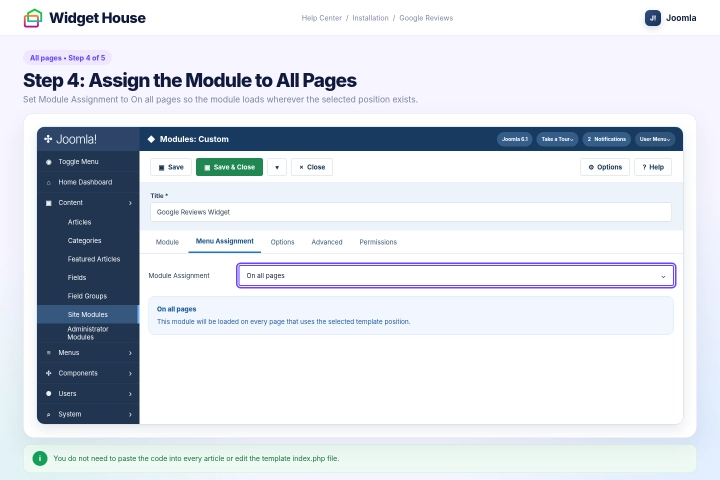
Open the Menu Assignment tab.
In the Module Assignment menu, select On all pages.
This setting makes the Custom module available on every Joomla page that uses a template containing the selected module position.
You do not need to paste the installation code into every article or edit your template's index.php file.
Step 4: Assign the Module to All Pages
Click Save & Close to save and publish the module.
Reopen the module and make sure the complete installation code, including the <script> tag, is still present.
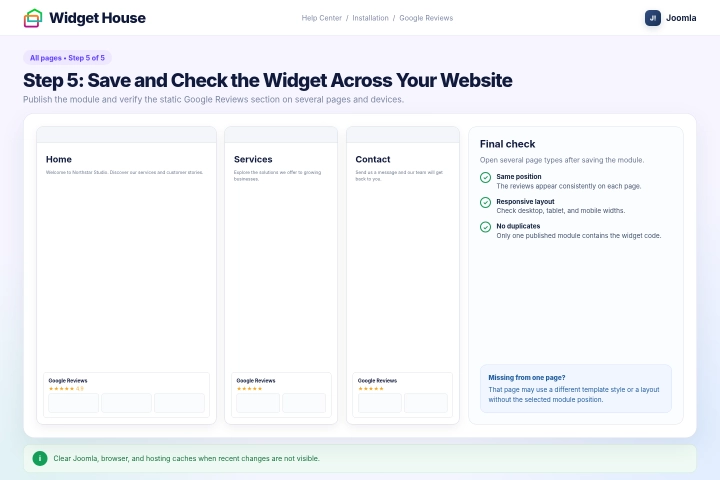
Open several pages of your website, such as the home page, contact page, service page, category page, and an article.
The Google Reviews Widget should appear in the same template position on every page that uses that position.
Check the widget on desktop, tablet, and mobile devices. Make sure it is fully visible and does not overlap navigation, forms, buttons, or other content.
If the widget is missing from a specific page, that page may use a different template style or a layout that does not contain the selected module position.
If your website uses several template styles, select a position available in each style or create a separate Custom module for pages that use a different template.
If the widget appears twice, open Content → Site Modules and make sure the same installation code has not been added to more than one published module in the same position.
If your changes are not visible immediately, clear the Joomla cache, browser cache, and any cache provided by your hosting service or optimization extension.
Step 5: Save and Check the Widget Across Your Website
All set. Your Google Reviews Widget should now be working on your Joomla website.
Need a hand with setup?
Contact our support team at support@widget-house.com and we will help you get the widget running on your Joomla website.
support@widget-house.com