Want to display customer reviews from Google on your Squarespace website? This guide explains how to add the Widget House Google Reviews Widget to one selected page or display it in the site footer across your entire website.
Before you begin, make sure you've created your widget and copied the installation code from your Widget House dashboard
Step-by-step guide to getting your Widget House widget code
Choose How You Want to Display the Widget
Add the widget to a single page
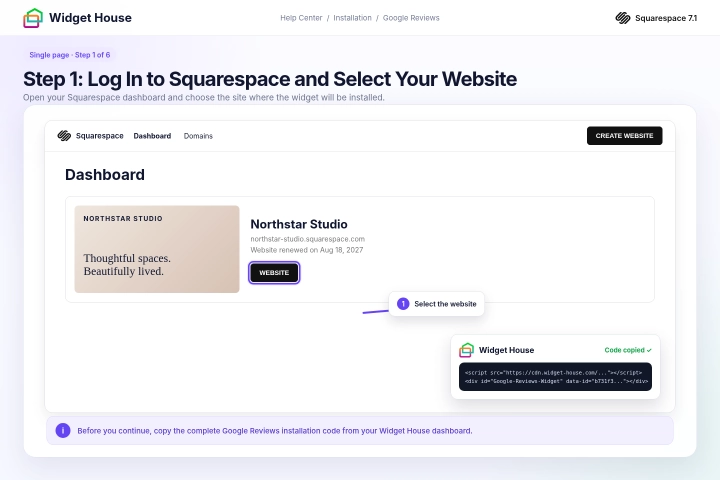
Log in to your Squarespace account and select the website where you want to install the Google Reviews Widget.
Before you begin, copy the complete installation code from your Widget House dashboard.
Plan requirement: The Google Reviews Widget uses JavaScript, so make sure your Squarespace plan supports JavaScript in Code Blocks.
Step 1: Log In to Squarespace and Select Your Website
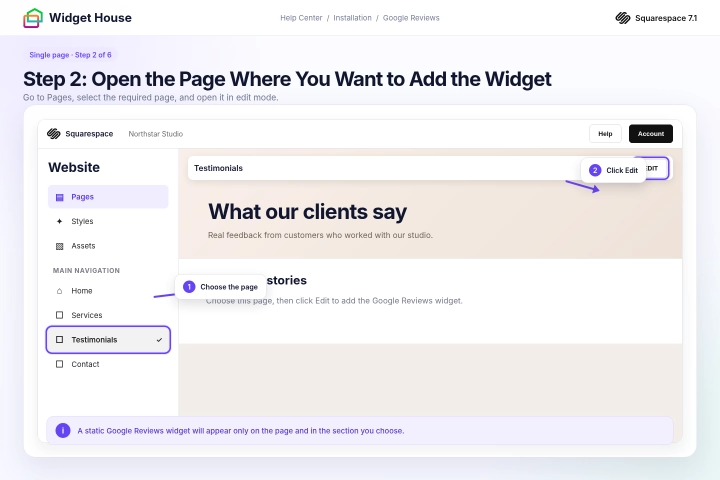
Open the Pages panel in Squarespace.
Select the page where you want the Google Reviews Widget to appear and click Edit.
This may be your home page, product or service page, testimonials page, contact page, or another page where customer reviews will be useful.
Step 2: Open the Page Where You Want to Add the Widget
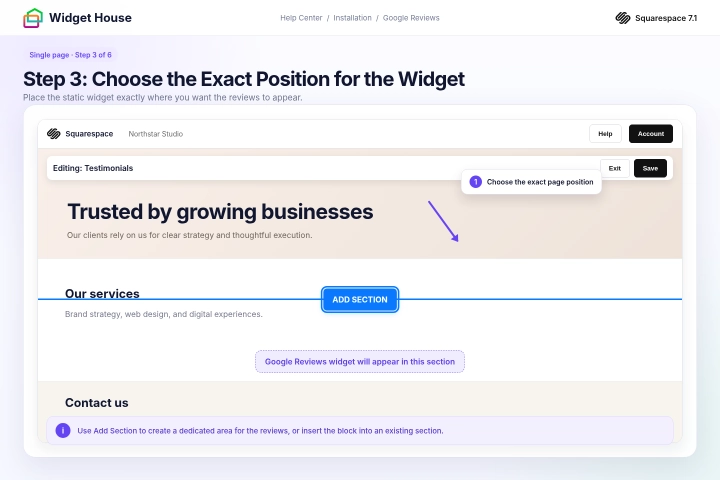
The Google Reviews Widget is static, which means it appears exactly where its installation code is placed.
Choose the section of the page where you want visitors to see the reviews. For example, you can place the widget below your service description, above a contact form, before a call-to-action, or near the bottom of the page.
On Squarespace 7.1, click Add Section and add a blank section if you need a separate section for the widget.
On Squarespace 7.0, hover over the required position and click the + insertion point.
Step 3: Choose the Exact Position for the Widget
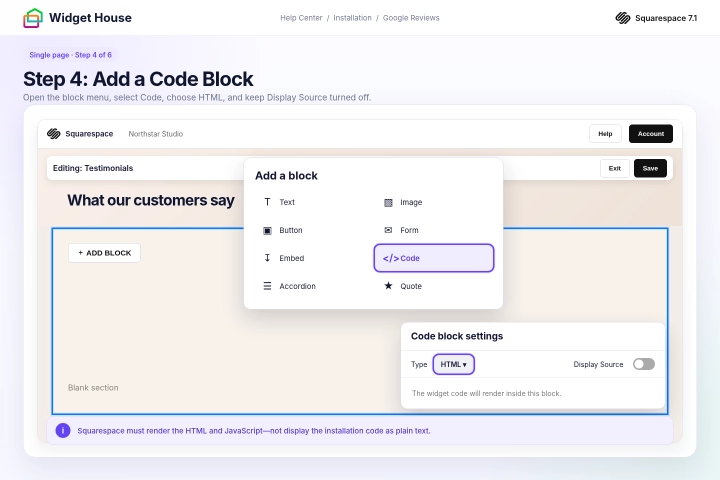
Click Add Block or the + icon and select Code from the block menu.
Open the Code Block settings by clicking the pencil icon on the block.
Select HTML in the Type menu. Make sure Display Source is turned off so the widget is rendered instead of showing the installation code as text.
Step 4: Add a Code Block
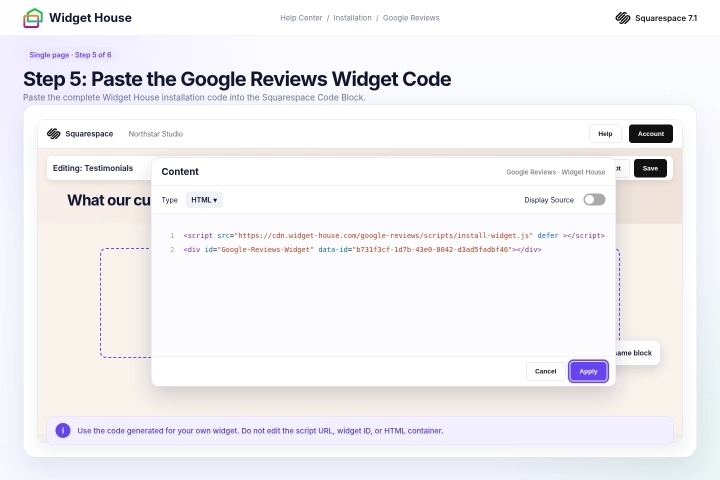
Paste the complete Google Reviews Widget installation code from your Widget House dashboard into the Code Block.
Keep the script and widget container together in the same Code Block. Do not remove, split, or change any part of the code.
The code shown in the screenshots is an example. Always use the installation code generated for your own widget so the correct reviews and design are displayed.
Seeing “Script Disabled”? Squarespace may display a Script Disabled notice inside the page editor after you paste the code. This is a standard Squarespace editor notification and does not mean that the Widget House installation code is broken.
The notice appears only inside the editor while you are logged in and managing the website. The script should run normally on the published page.
After pasting the code, apply the changes and resize the block so the widget has enough space to display correctly.
Step 5: Paste the Google Reviews Widget Code
Click Save to save your changes and keep editing, or click Exit and then Save to close the editor.
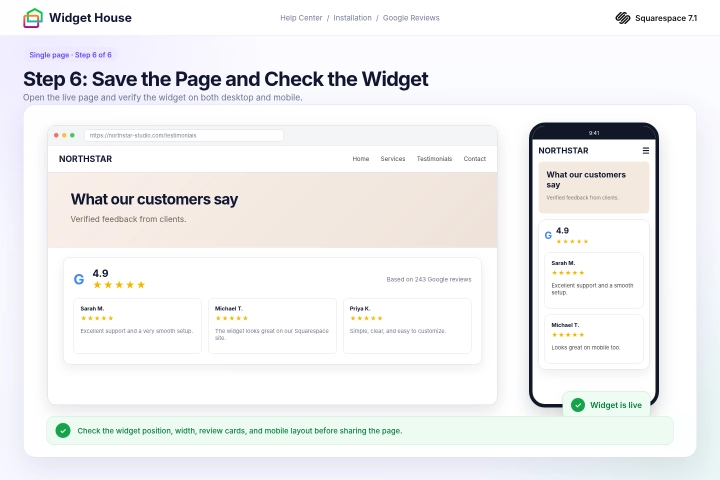
Open the live page and make sure the Google Reviews Widget appears in the selected position.
If Script Disabled appears only inside the Squarespace editor, no action is required. This notification applies to the editor and does not mean that the widget is disabled on the published website.
For the most reliable check, open the published page in a new browser tab or private browser window where you are not logged in to Squarespace.
You only need to troubleshoot the installation if the widget is also missing from the published page.
Check the widget on both desktop and mobile devices. If necessary, return to the page editor and adjust the width or position of the Code Block.
If the widget does not appear while you are logged in to Squarespace, open the page in a private browser window or use Preview in Safe Mode.
If the widget is still missing from the published page, reopen the Code Block and make sure the complete <script> and <div> were saved.
Step 6: Save the Page and Check the Widget
Show the widget on All pages
Show It on All Pages of Your Website
Because the Google Reviews Widget is static, we recommend placing it in the global Squarespace footer when you want it to appear across your website.
This gives the widget a specific and consistent position at the bottom of every page instead of inserting it into an uncontrolled global code area.
Open any page of your Squarespace website and click Edit.
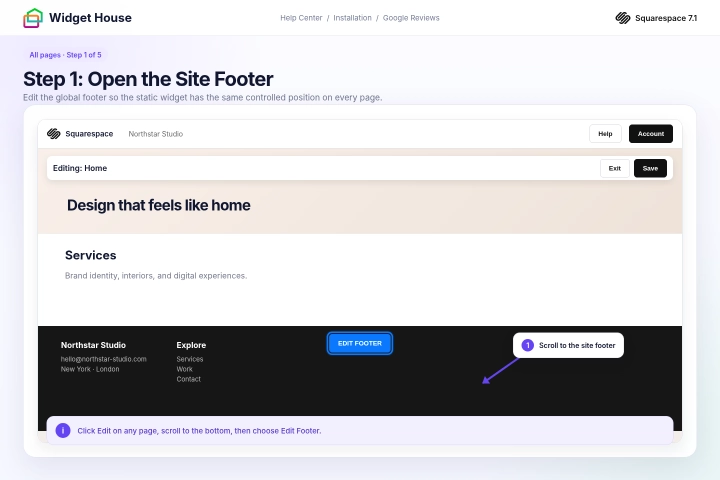
Scroll to the bottom of the page, hover over the footer, and click Edit Footer. On Squarespace 7.0, the button may simply be called Edit.
Step 1: Open the Site Footer
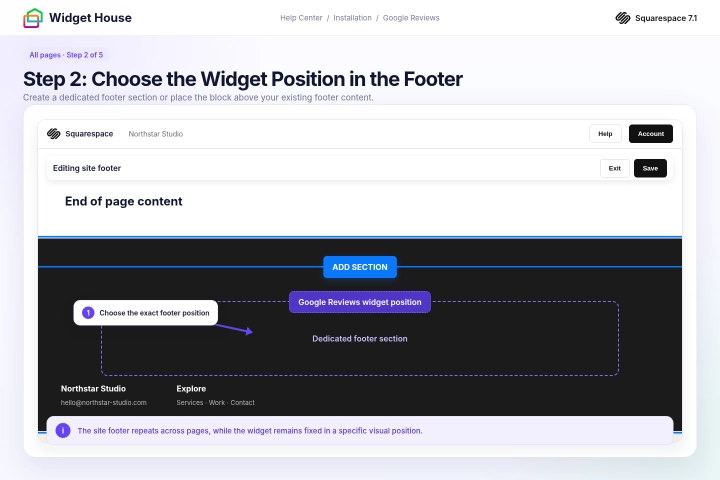
Choose the exact location in the site footer where you want the Google Reviews Widget to appear.
On Squarespace 7.1, you can click Add Section and add a blank or footer-style section if you want to keep the reviews separate from your existing footer content.
You can place the widget above your contact details, newsletter form, navigation links, copyright information, or other footer elements.
Step 2: Choose the Widget Position in the Footer
Click Add Block or the + icon inside the selected footer section.
Select Code from the block menu and open the Code Block settings by clicking the pencil icon.
Select HTML in the Type menu and make sure Display Source is turned off.
Step 3: Add a Code Block to the Footer
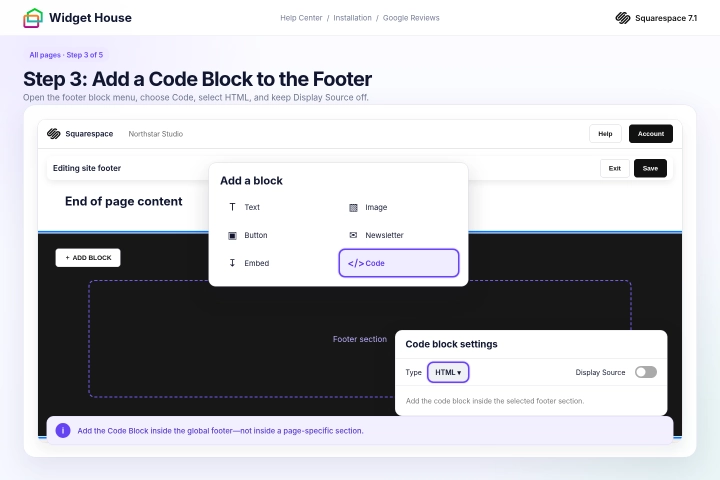
Paste the complete Google Reviews Widget installation code from your Widget House dashboard into the footer Code Block.
Keep the script and widget container together in the same block. Do not edit the script URL, widget ID, or HTML container.
The code shown in the screenshots is an example. Use the installation code generated for your own widget before saving the website.
Seeing “Script Disabled”? Squarespace may display a Script Disabled notice inside the footer editor after you paste the code. This is a standard Squarespace editor notification and does not mean that the installation has failed.
The notification is shown only while you are logged in and editing the website. Save the footer and check the published website to confirm that the widget is working.
Apply the changes and resize or reposition the Code Block so the reviews fit naturally within the footer layout.
Step 4: Paste the Google Reviews Widget Code
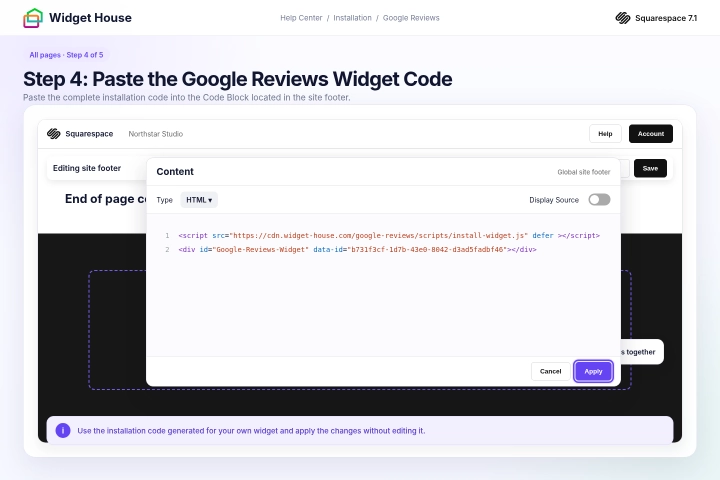
Click Save to save your changes and keep editing, or click Exit and then Save to close the editor.
Open several pages of your website, such as the home page, contact page, product page, and another internal page.
The Google Reviews Widget should appear in the same footer position on every page where the site footer is enabled.
If Script Disabled appears only inside the Squarespace editor, you can ignore the notification. Check the published website in a new browser tab or private browser window instead.
You only need to troubleshoot the installation if the widget is also missing from the published website.
Check the footer on desktop and mobile devices and make sure the widget does not overlap navigation links, forms, or other footer content.
If the widget is missing from a Squarespace 7.1 layout page, open the page settings, select Navigation, and make sure Show Footer is enabled. Collection pages, such as blog, store, and portfolio pages, may not include this setting. Footer visibility on Squarespace 7.0 depends on the selected template.
If the widget is missing across the published website, reopen the footer Code Block and make sure the complete <script> and <div> were saved.
If the widget appears twice, check whether the same installation code was also added directly to an individual page or another footer Code Block.
Step 5: Save and Check the Widget Across Your Website
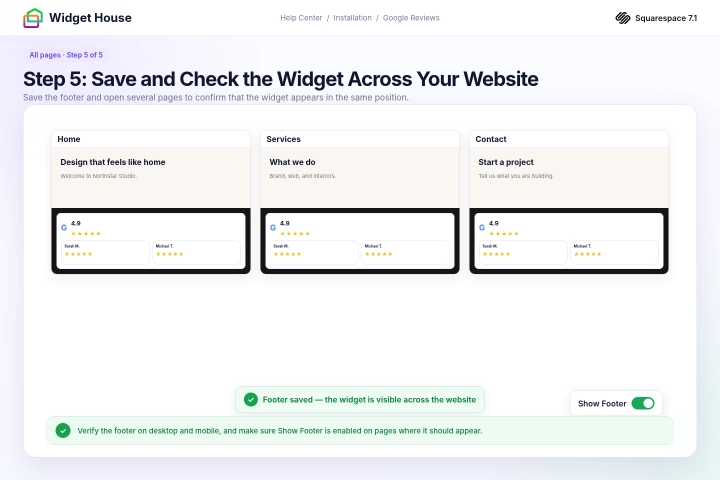
All set. Your Google Reviews Widget should now be working on your Squarespace website.
Need a hand with setup?
Contact our support team at support@widget-house.com and we will help you get the widget running on your Squarespace website.
support@widget-house.com