Want to display customer reviews from Google on your Wix website? This guide explains how to add the Widget House Google Reviews Widget to one selected page or display it across your website using Wix Editor, Wix Studio, or Wix Harmony Editor.
Before you begin, make sure you've created your widget and copied the installation code from your Widget House dashboard
Step-by-step guide to getting your Widget House widget code
Choose How You Want to Display the Widget
Add the widget to a single page
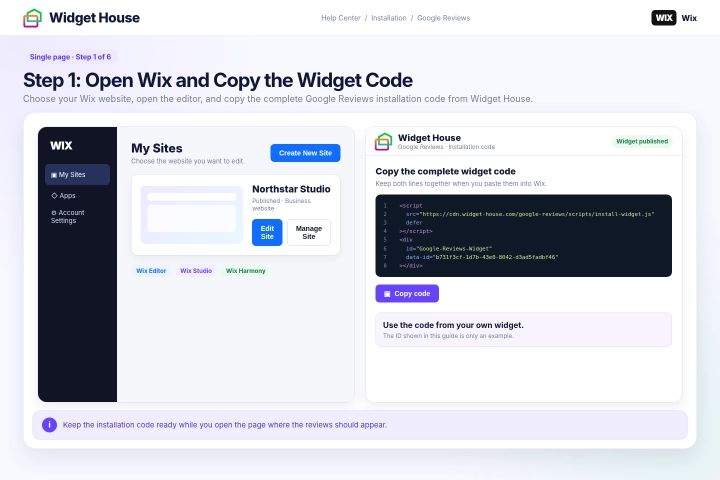
Log in to your Wix account and select the website where you want to install the Google Reviews Widget.
Open the website in Wix Editor, Wix Studio, or Wix Harmony Editor.
Open your Widget House dashboard and copy the complete installation code for your Google Reviews Widget.
Keep the code ready while you open the required page in Wix.
Step 1: Open Wix and Copy the Widget Code
Open the page where you want the Google Reviews Widget to appear using the page selector or Pages panel in your Wix editor.
The Google Reviews Widget is static, which means it appears exactly where the embed element is placed.
Choose a suitable position for the reviews. For example, you can place the widget below a service description, above a contact form, before a call-to-action, or near the bottom of the page.
Make sure there is enough space in the selected section for the widget to display correctly.
Step 2: Open the Page and Choose the Widget Position

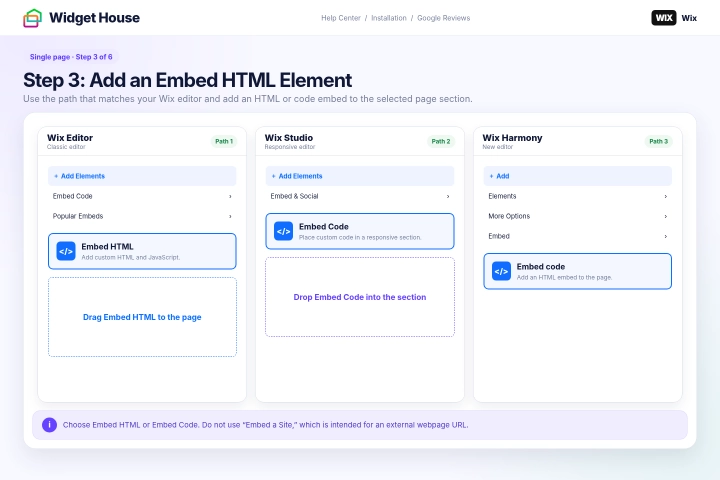
Wix Editor: Click Add Elements on the left side of the editor, open Embed Code, select Popular Embeds, and add Embed HTML.
Wix Studio: Click Add Elements, open Embed & Social, and select Embed Code.
Wix Harmony Editor: Click + Add, select Elements, open More Options, select Embed, and drag the Embed code element onto the page.
Place the embed element in the exact section where you want the Google Reviews Widget to appear.
Select the option for embedding HTML or code. Do not select Embed a Site, which is intended for displaying an external webpage by URL.
Step 3: Add an Embed HTML Element
Wix Editor and Wix Studio: Select the embed element and click Enter Code.
Wix Harmony Editor: Select the embed element, click the Settings icon, and paste the code into the Enter HTML embed code field.
Paste the complete Google Reviews Widget installation code from your Widget House dashboard.
Keep the script and widget container together in the same embed element. Do not remove, split, or change any part of the installation code.
Click Apply. In some versions of the Wix editor, this button may be labeled Update.
In Wix Harmony Editor, add an accessible name such as Google Reviews Widget and select the appropriate cookie category for your website if these settings are displayed.
The code shown in the screenshots is an example. Always use the installation code generated for your own widget so the correct reviews and design are displayed.
Step 4: Paste the Google Reviews Widget Code

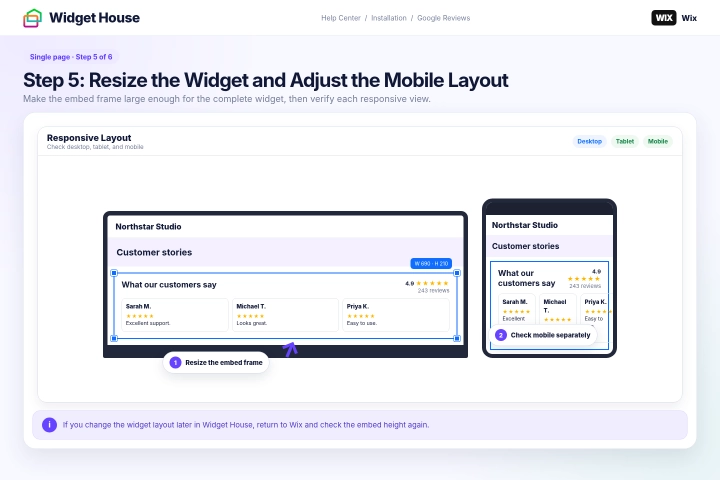
Drag the embed element to the required position and resize its frame so the complete Google Reviews Widget fits inside it.
The embedded widget is displayed inside an iframe, so the size of the Wix embed element controls how much of the widget is visible.
Make the element wide and tall enough to prevent reviews from being cut off and to avoid unwanted scroll bars.
Wix Editor: Switch to the mobile editor and check the widget's size and position on the mobile version of the page.
Wix Studio: Check the widget at the available desktop, tablet, and mobile breakpoints and adjust its dimensions where necessary.
Wix Harmony Editor: Switch between desktop and mobile views and resize or reposition the embed element as needed.
If you change the widget layout, number of reviews, or design later in Widget House, return to Wix and check the embed element's height again.
Step 5: Resize the Widget and Adjust the Mobile Layout
Click Publish in the Wix editor. Saving the website without publishing does not make the changes visible on the live site.
Open the published page in a new browser tab and make sure the Google Reviews Widget appears in the selected position.
Check the page on both desktop and mobile devices. Make sure the widget is fully visible and does not overlap text, buttons, forms, or other page elements.
If the widget is cut off or displays scroll bars, return to the editor and increase the width or height of the embed element.
If the widget does not appear immediately, refresh the live page and confirm that the complete installation code was added to the embed element.
The widget may look different inside the editor or preview. Use the published website to confirm the final result.
Step 6: Publish the Site and Check the Widget

Show the widget on All pages
Show It on All Pages of Your Website
Because the Google Reviews Widget is static, it must remain in a specific and controlled position inside the website layout.
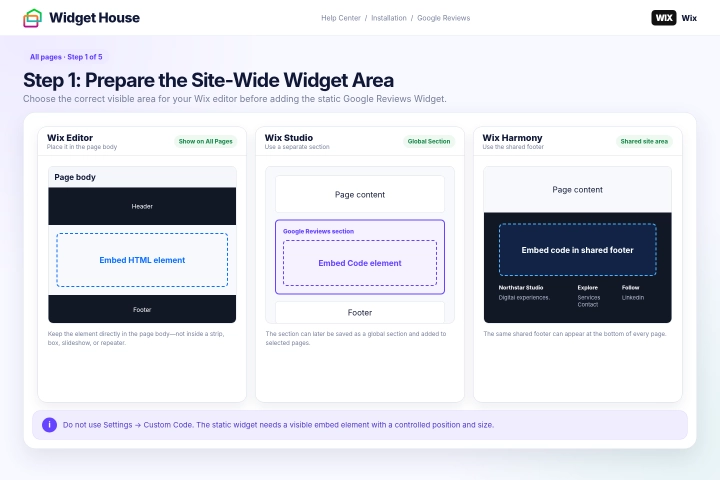
Wix Editor: Add an Embed HTML element to the page body. HTML embeds cannot be placed directly in the Wix Editor header or footer because they are displayed inside an iframe.
Keep the Wix Editor embed element directly in the page body. Do not place it inside a box, strip, slideshow, repeater, or another container if you plan to use Show on All Pages.
Wix Studio: Add a separate section in the location where you want the reviews to appear, then add an Embed Code element inside that section.
Wix Harmony Editor: Click the shared site footer and add an Embed code element to the footer. The shared footer gives the static widget a consistent position at the bottom of your pages.
Do not use Settings → Custom Code for this installation. Wix Custom Code snippets are invisible, while the Google Reviews Widget requires a visible embed element with a controlled position and size.
Step 1: Prepare the Site-Wide Widget Area
Select the embed element and open its code settings.
Paste the complete Google Reviews Widget installation code from your Widget House dashboard.
Keep the script and widget container together in the same embed element and click Apply. In some versions of the editor, this button may be labeled Update.
Move the element to the exact position where you want the reviews to appear and resize it until the complete widget fits without being cut off or displaying scroll bars.
In Wix Studio, make sure the embed element remains inside the section that you plan to make global.
In Wix Harmony Editor, make sure the embed element is attached to the shared footer area.
If you change the widget layout or design later in Widget House, return to Wix and check the embed element's height again.
Step 2: Paste the Code and Set the Widget Size
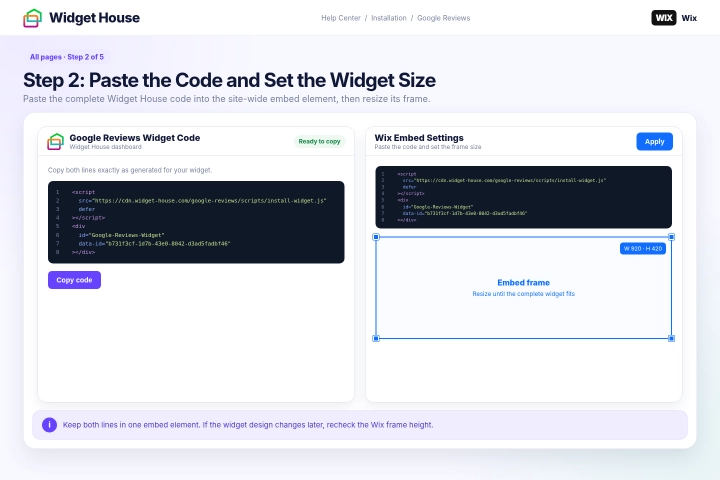
Wix Editor: Right-click the Embed HTML element and enable Show on All Pages. You can also enable this option from the Editor Toolbar.
If Show on All Pages is unavailable, make sure the embed element is located directly in the page body and is not inside another container element.
Do not select Pin to Screen. The Google Reviews Widget is static and should remain inside the page layout instead of floating above the website content.
Wix Studio: Select the section containing the widget, click the More Actions icon, and select Set as Global.
Select Section if the reviews should appear within the page content. If the section is located at the very bottom of the page on every breakpoint, you can select Footer.
Enter a clear name such as Google Reviews and save the global section.
Wix Harmony Editor: No additional site-wide setting is required when the embed element is placed inside the shared footer. Wix Harmony uses the same footer content across the website.
Step 3: Make the Widget Available Across Your Site
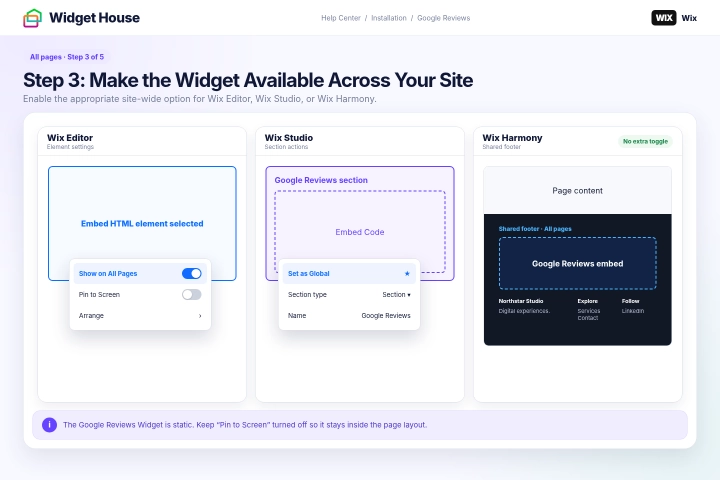
Wix Editor: Switch between several pages and confirm that the embed element appears in the intended position.
In the Wix Editor mobile version, an element enabled with Show on All Pages may become part of the header, footer, or mobile menu depending on its position. Check the mobile layout separately and move the element if necessary.
Pages that use a layout without a header and footer do not display elements enabled with Show on All Pages.
If the footer overlaps the widget on a shorter page, adjust the page height or move the widget so both elements remain fully visible.
Wix Studio: Open the Global Sections panel, find the Google Reviews section, click the More Actions icon, and select Add to....
Select all pages where the widget should appear and click Apply. Use the Layers panel to move the global section to the correct position on each page.
If you set the section as the global footer, it remains at the bottom of the pages that use that footer.
Check the section at the available desktop, tablet, and mobile breakpoints.
Wix Harmony Editor: Check the shared footer in desktop and mobile views and resize the footer or embed element if necessary.
Step 4: Add the Widget to Your Pages and Check Mobile Layout
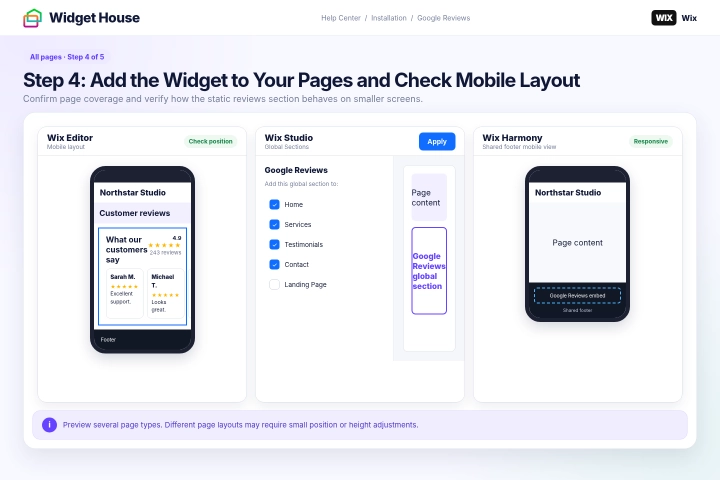
Click Publish to make the updated embed element, global section, or shared footer available on the live website.
Open several pages, such as the home page, contact page, product or service page, and another internal page.
The Google Reviews Widget should appear in the selected position on every page where the element, global section, or shared footer is enabled.
Check the widget on both desktop and mobile devices. Make sure it is fully visible and does not overlap navigation, forms, buttons, or other content.
Wix Editor: If the widget is missing, make sure Show on All Pages is enabled and the page does not use a layout without a header and footer.
Wix Studio: If the widget is missing, open the Global Sections panel and make sure the section has been added to the required page.
If you create new pages later in Wix Studio, add the Google Reviews global section to those pages as well.
Wix Harmony Editor: If the widget is missing from a specific page, make sure the shared footer has not been hidden on that page.
If the widget is cut off or displays scroll bars, increase the width or height of the embed element and publish the website again.
Step 5: Publish and Check the Widget Across Your Website
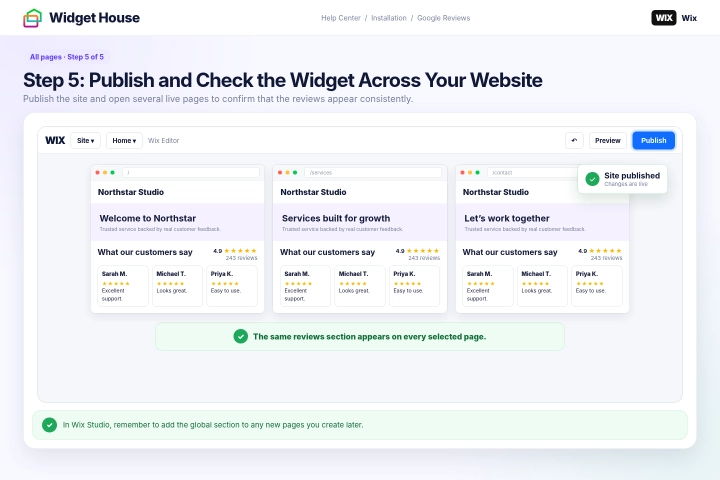
All set. Your Google Reviews Widget should now be working on your Wix website.
Need a hand with setup?
Contact our support team at support@widget-house.com and we will help you get the widget running on your Wix website.
support@widget-house.com