Want to let visitors message you on WhatsApp directly from your Jumpseller store? This guide shows how to install the WhatsApp Chat Widget on your website in just a few steps.
Before you begin, make sure you've created your widget and copied the installation code from your Widget House dashboard
Step-by-step guide to getting your Widget House widget code
Choose How You Want to Display the Widget
Add the widget to a single page
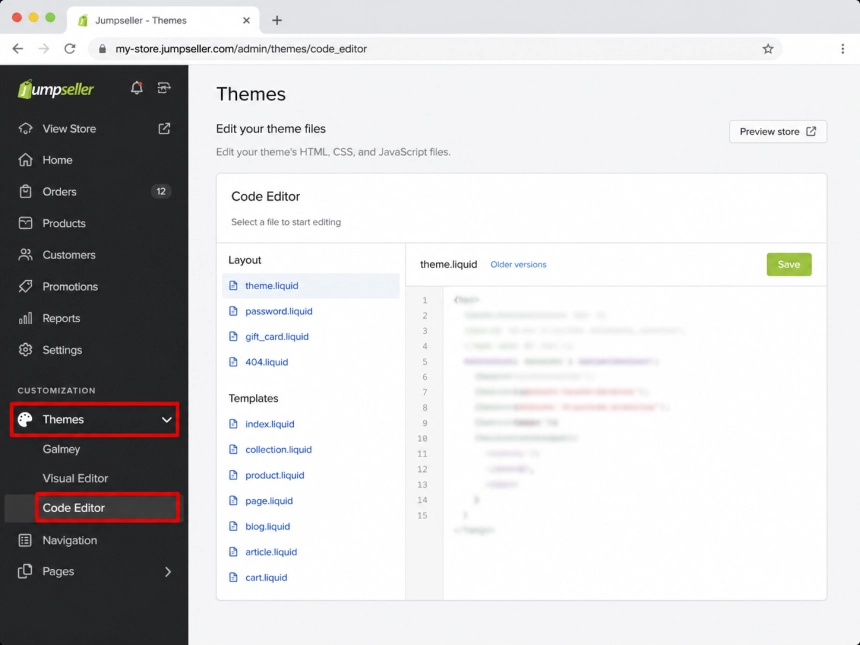
Log in to your Jumpseller admin panel. In the left sidebar, open Themes, then click Code Editor
Open Jumpseller Code Editor
Step 1: Open the Jumpseller Code Editor
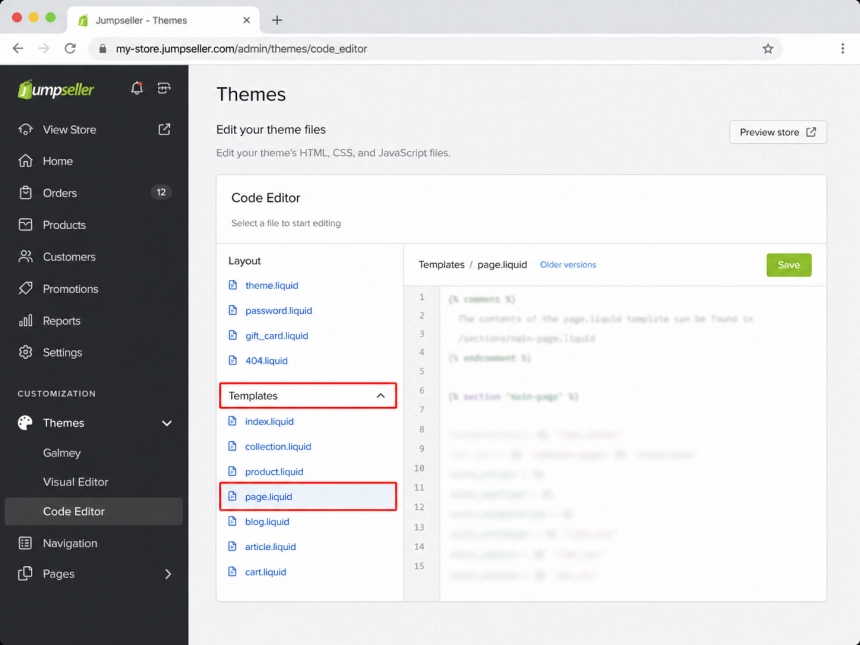
In the code editor, find the Templates section
Choose the template where you want to add the widget. For example, if you want to place the widget on a regular page, select page.liquid
Step 2: Select the Page Template
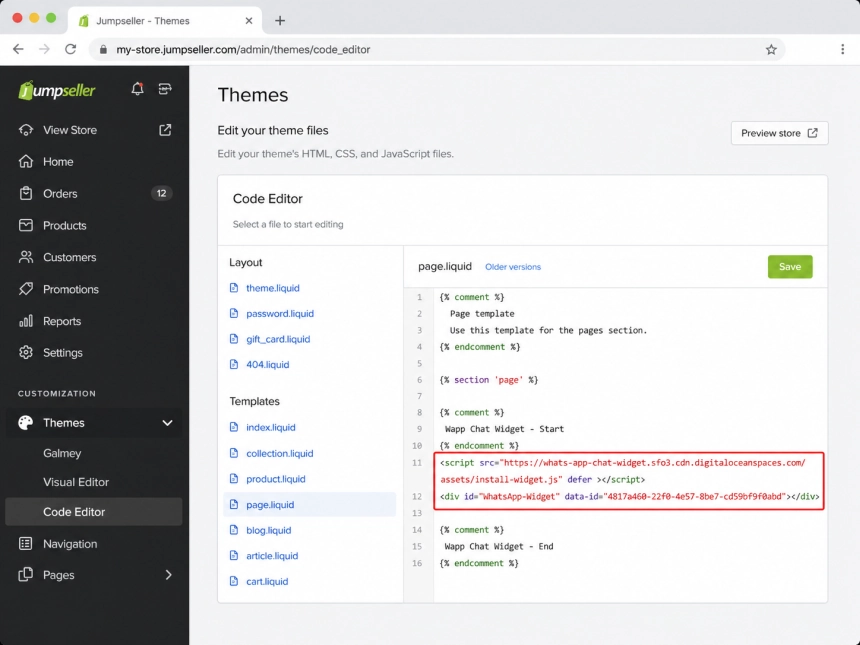
Now paste your WhatsApp Chat Widget installation code into the selected template
For a floating WhatsApp widget, it's usually best to place the code at the bottom of the template. This allows you to separate the widget from the content of your homepage and helps it load properly
Step 3: Add the WhatsApp Chat Widget Code
Click Save in the upper-right corner
Now the WhatsApp widget will appear on the page using this template
Step 4: Save the changes
Show the widget on All pages
Add Your Widget to All Pages
Log in to your Jumpseller admin panel. In the left sidebar, open Themes, then select the Code Editor
Open the Jumpseller Code Editor
Step 1: Open the Jumpseller Code Editor
In the code editor, find and expand the components section
Open the components section in Jumpseller
Step 2: Open the Components section
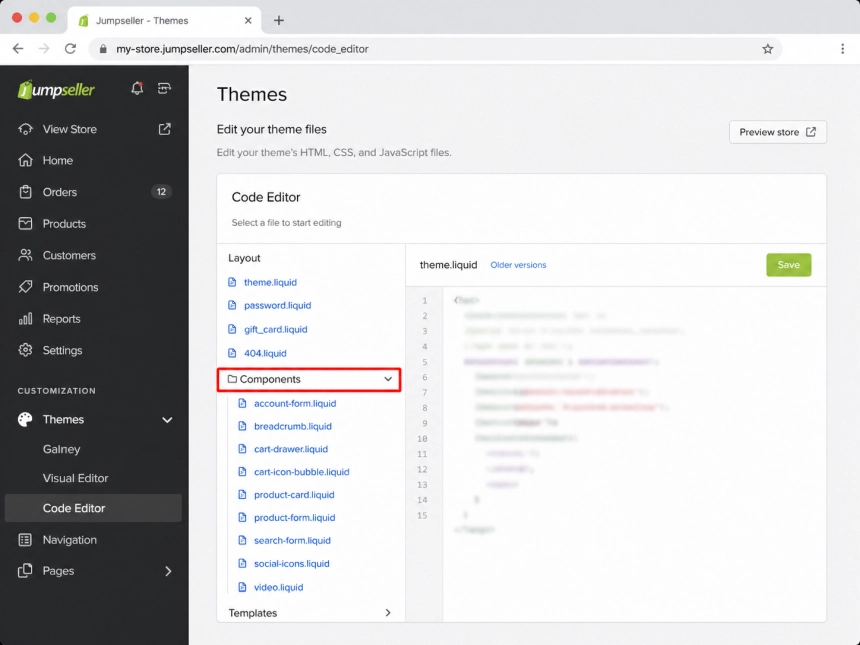
In the Components section, select the footer.liquid
You can also see header.liquid in the same area. For this type of WhatsApp floating widget, use the footer. It is usually best to add the code to liquid, since the widget can be loaded throughout the store without being tied to one specific block of the page
Select the footer.liquid in Jumpseller
Step 3: Select the footer.liquid
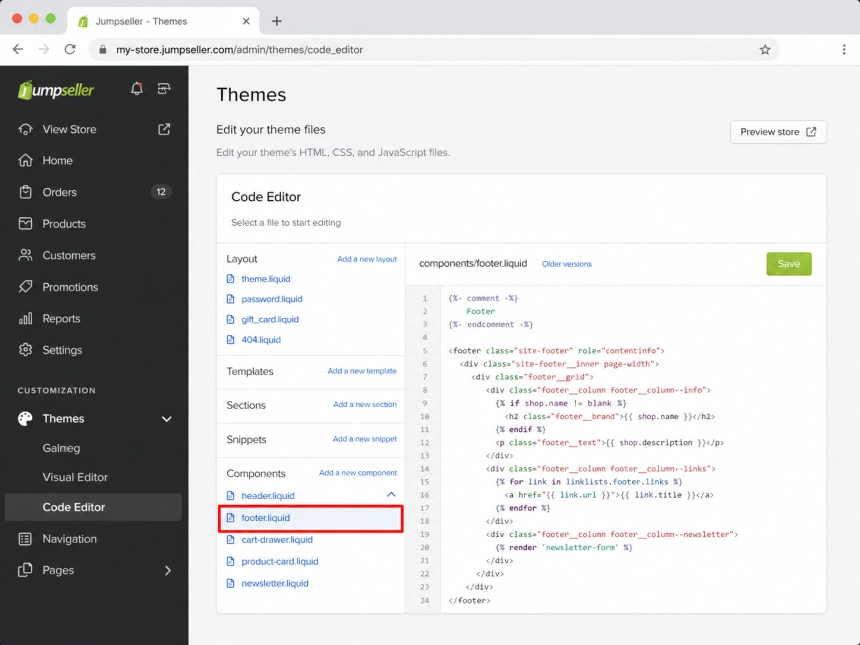
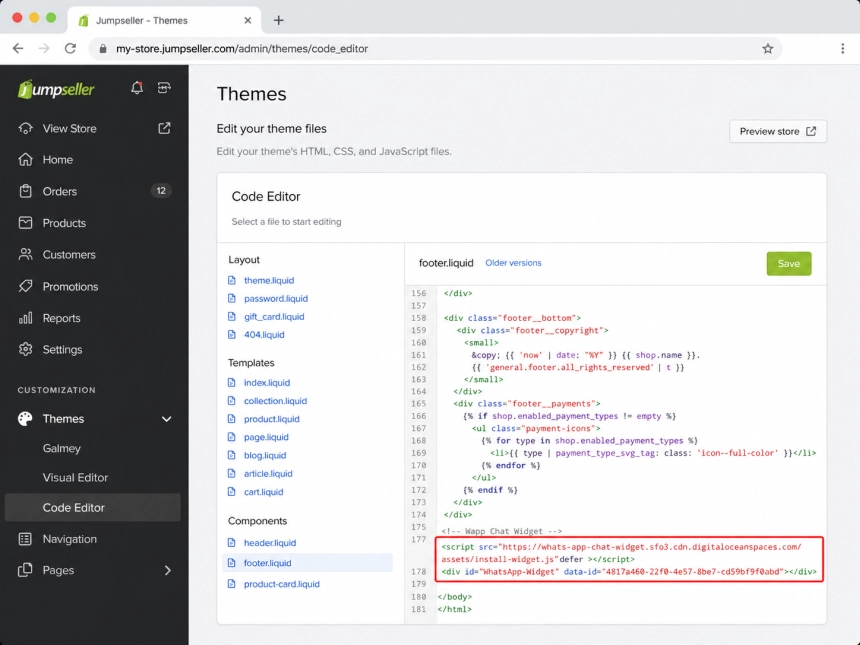
Paste the WhatsApp chat code into the footer.liquid
Place it at the bottom of the file, ideally before the closing
Step 4: Insert the code of the WhatsApp widget for the chat